DCC 2026: Meshtastic 101
Joe Levi's introductory presentation on off-grid Meshtastic messaging and location sharing with LoRa, with no cell service or Wi-Fi required.
Use the arrows, swipe on a touch screen, or use the left and right arrow keys to move through the 51 slides. The full screen button expands the deck. A PDF download is available below the slides.
Presentation outline
This deck is an introductory Meshtastic 101 course prepared by Joe Levi for DCC 2026. It covers the very basics of off-grid, LoRa-based messaging and location sharing: what Meshtastic is and is not, why people use it, how a mesh differs from a cellular network, how LoRa works, common hardware and device roles, firmware and apps, radio presets and channels, getting started on a public or private mesh, and practical pitfalls, tips, and project ideas.
- Slide 1: Meshtastic 101. This is an introduction course. Terminology and concepts have been simplified to better facilitate learning.
- Slide 2: Welcome to the Mesh. Off-grid messaging and location sharing with LoRa, with no cell service or Wi-Fi needed.
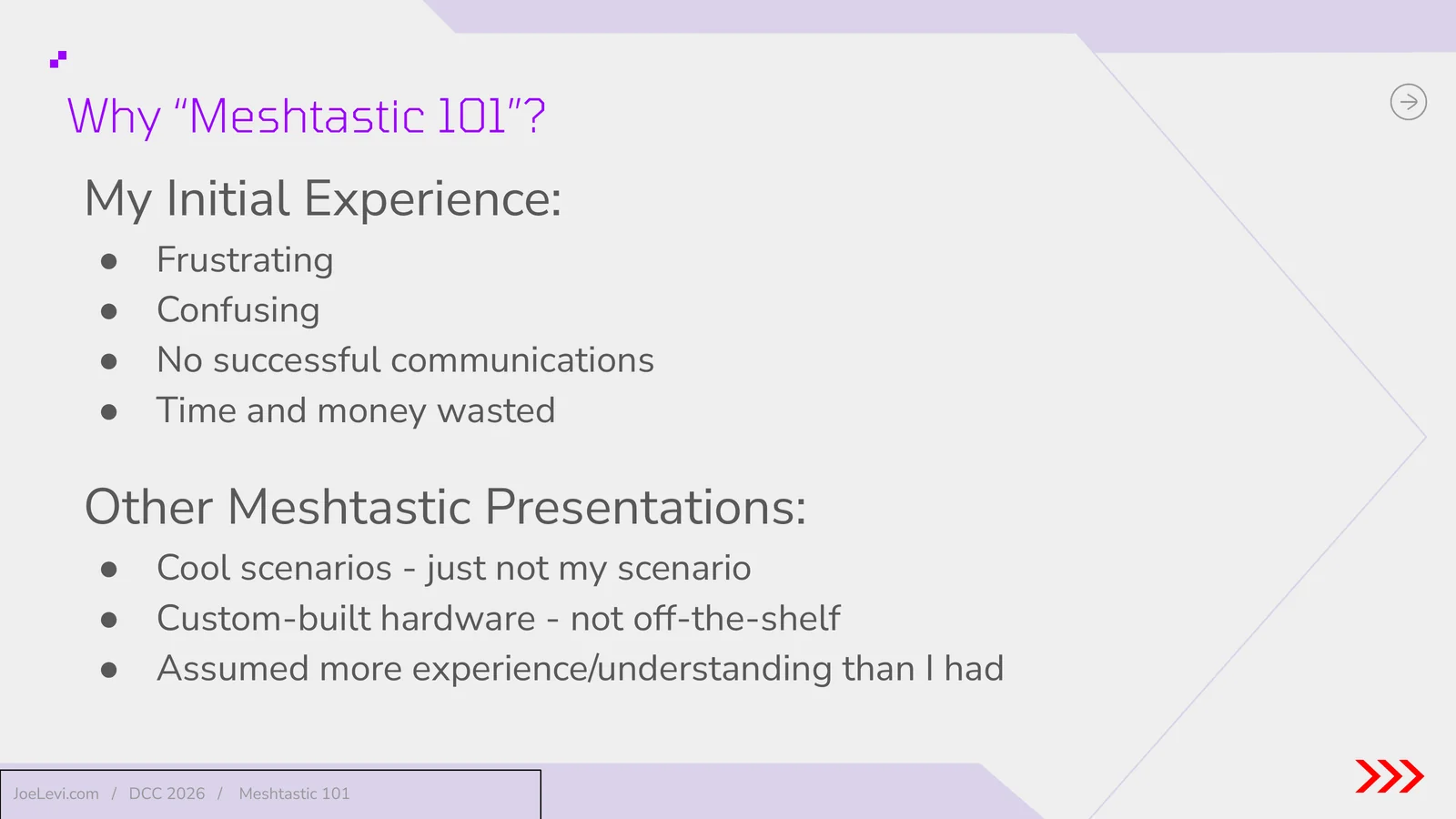
- Slide 3: Why Meshtastic 101? Joe's first experience was frustrating and produced no successful communications. Other presentations assumed more experience, or focused on custom hardware, rather than the very basics.
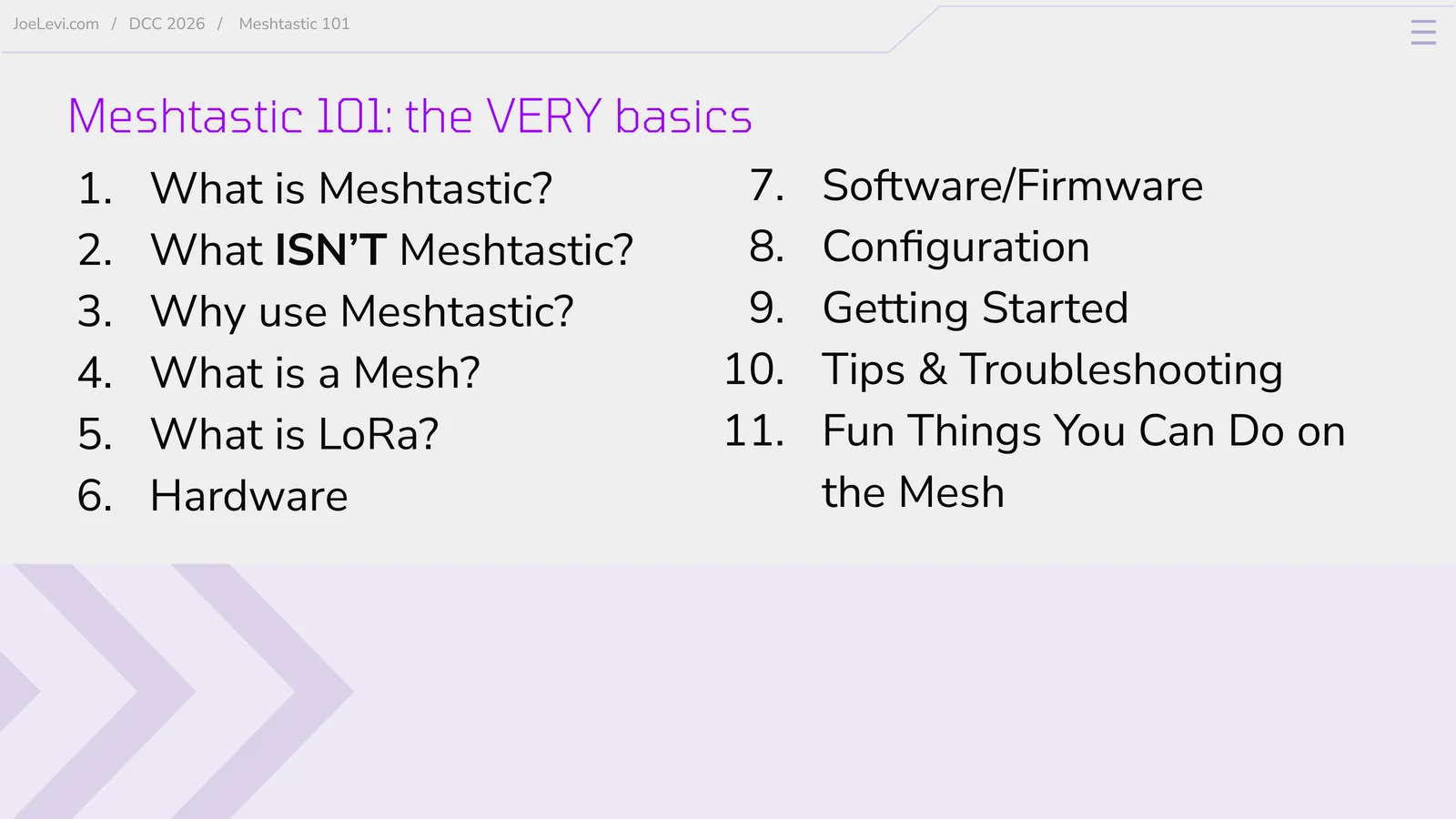
- Slide 4: The very basics. An agenda covering what Meshtastic is and is not, why to use it, meshes, LoRa, hardware, software and firmware, configuration, getting started, tips, and fun projects.
- Slide 5: What is Meshtastic? Section title.
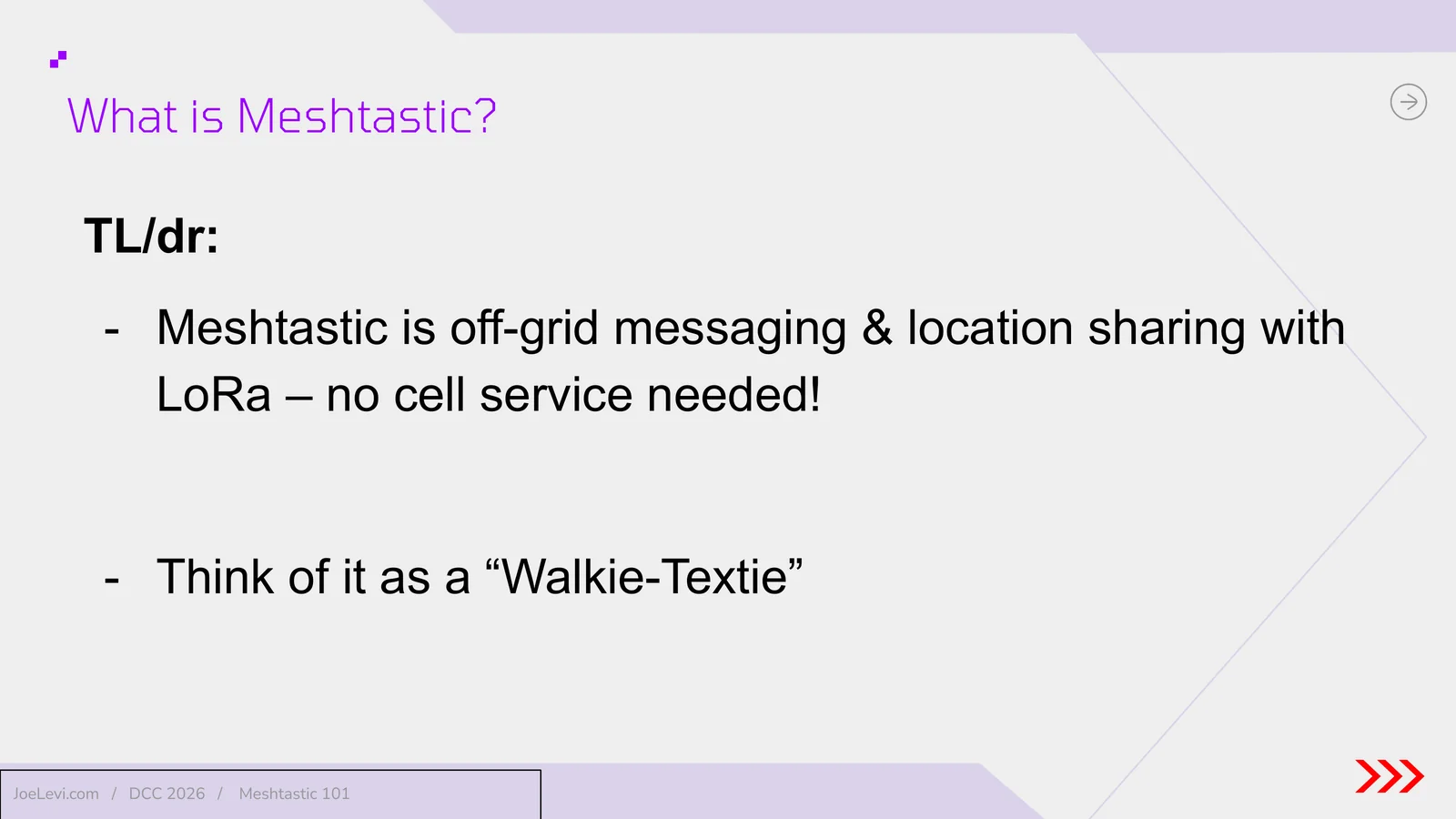
- Slide 6: What is Meshtastic? The short version. Meshtastic is off-grid messaging and location sharing with LoRa, with no cell service needed. Think of it as a Walkie-Textie.
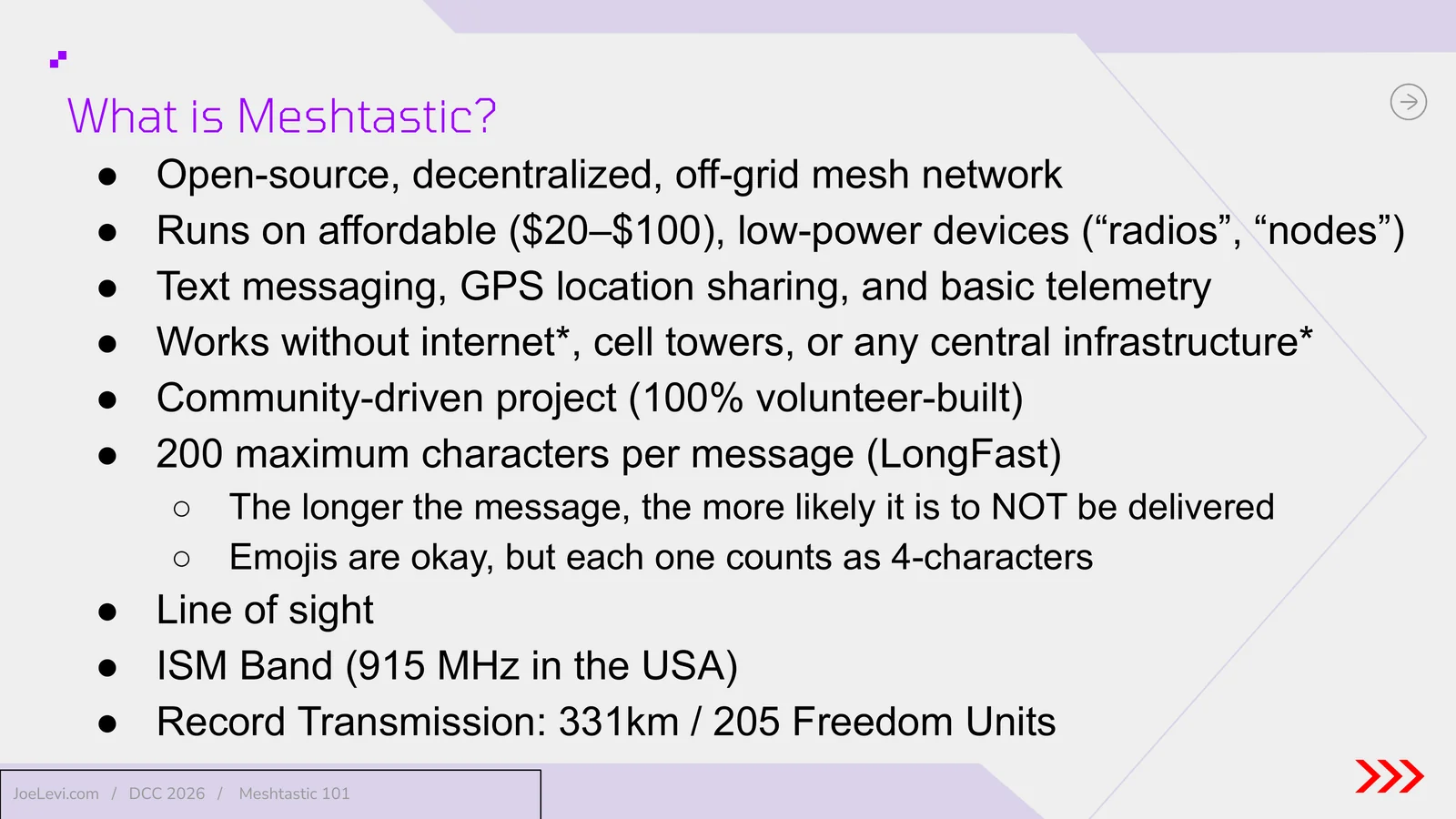
- Slide 7: What is Meshtastic? The details. An open-source, decentralized, volunteer-built mesh that runs on affordable $20 to $100 low-power nodes. It carries short text, GPS location, and basic telemetry without internet or cell towers. LongFast messages are capped at 200 characters. It uses the 915 MHz ISM band in the USA, line of sight, with a record transmission of 331 km, or 205 miles.
- Slide 8: What isn't Meshtastic? Section title.
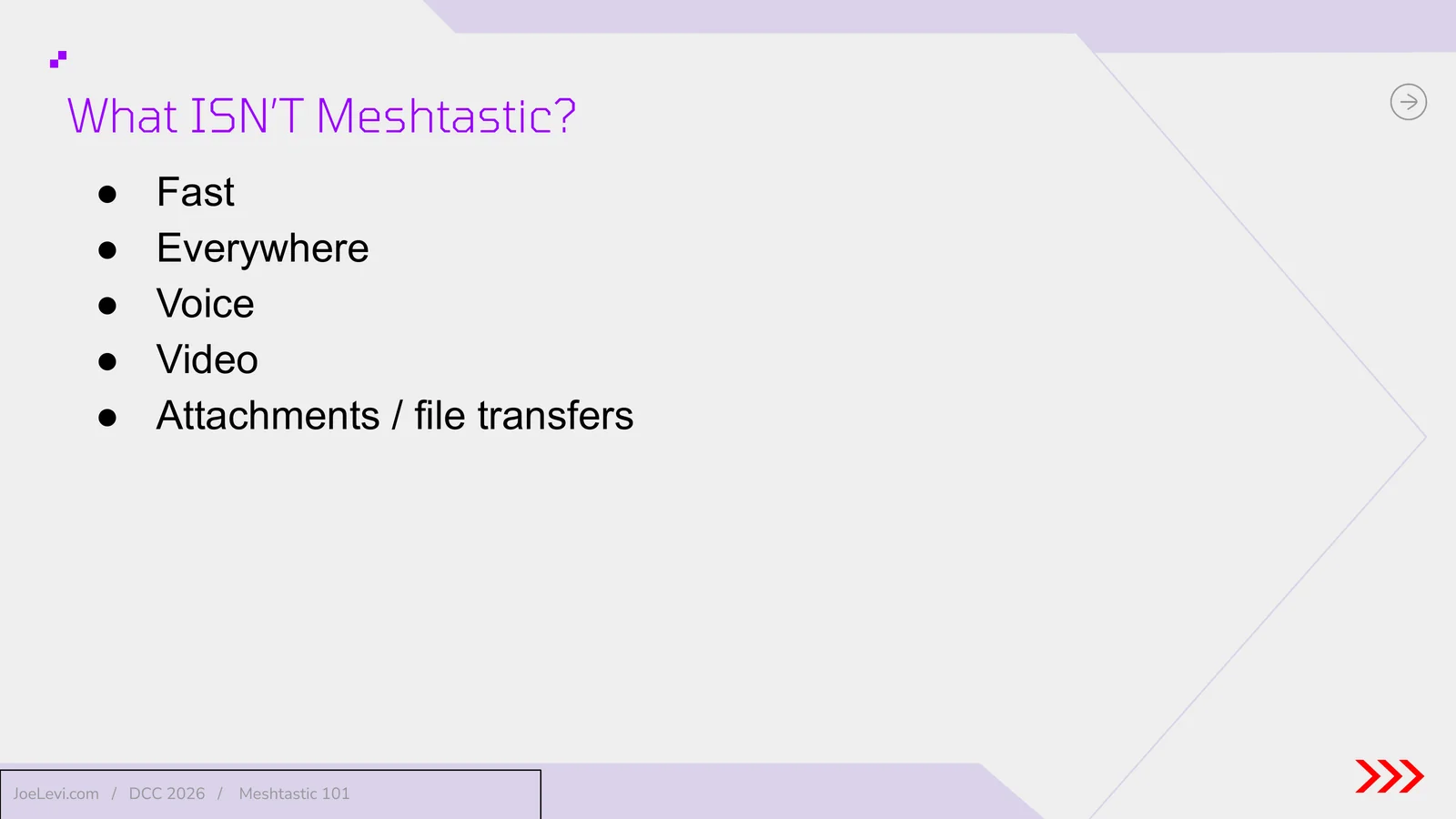
- Slide 9: What it does not do. It is not fast, not everywhere, and it is not voice, video, or file attachments.
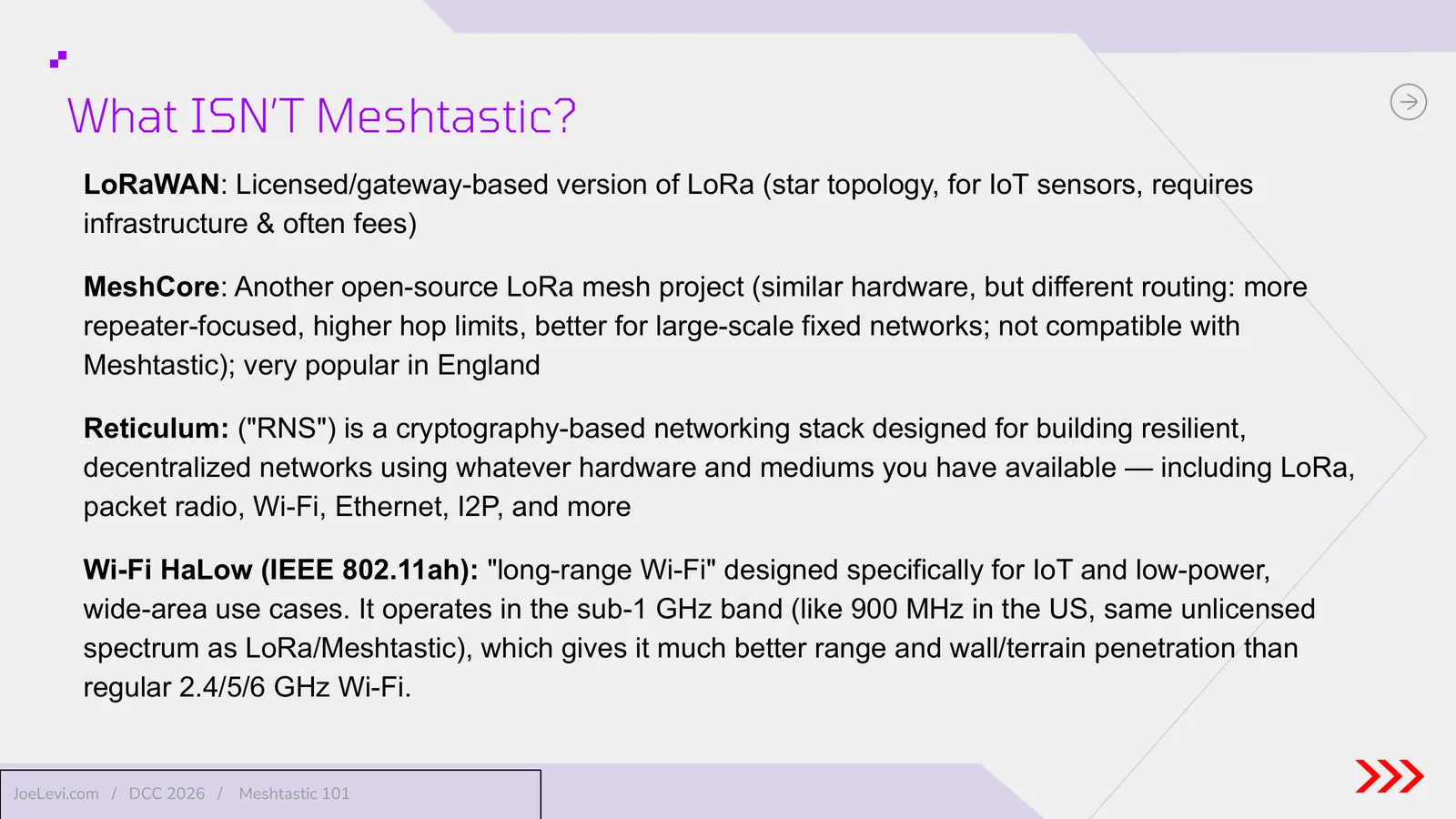
- Slide 10: Related but different technologies. Meshtastic is not LoRaWAN, MeshCore, Reticulum, or Wi-Fi HaLow, even though some of those also use LoRa or sub-1 GHz spectrum.
- Slide 11: Why use Meshtastic? Section title.
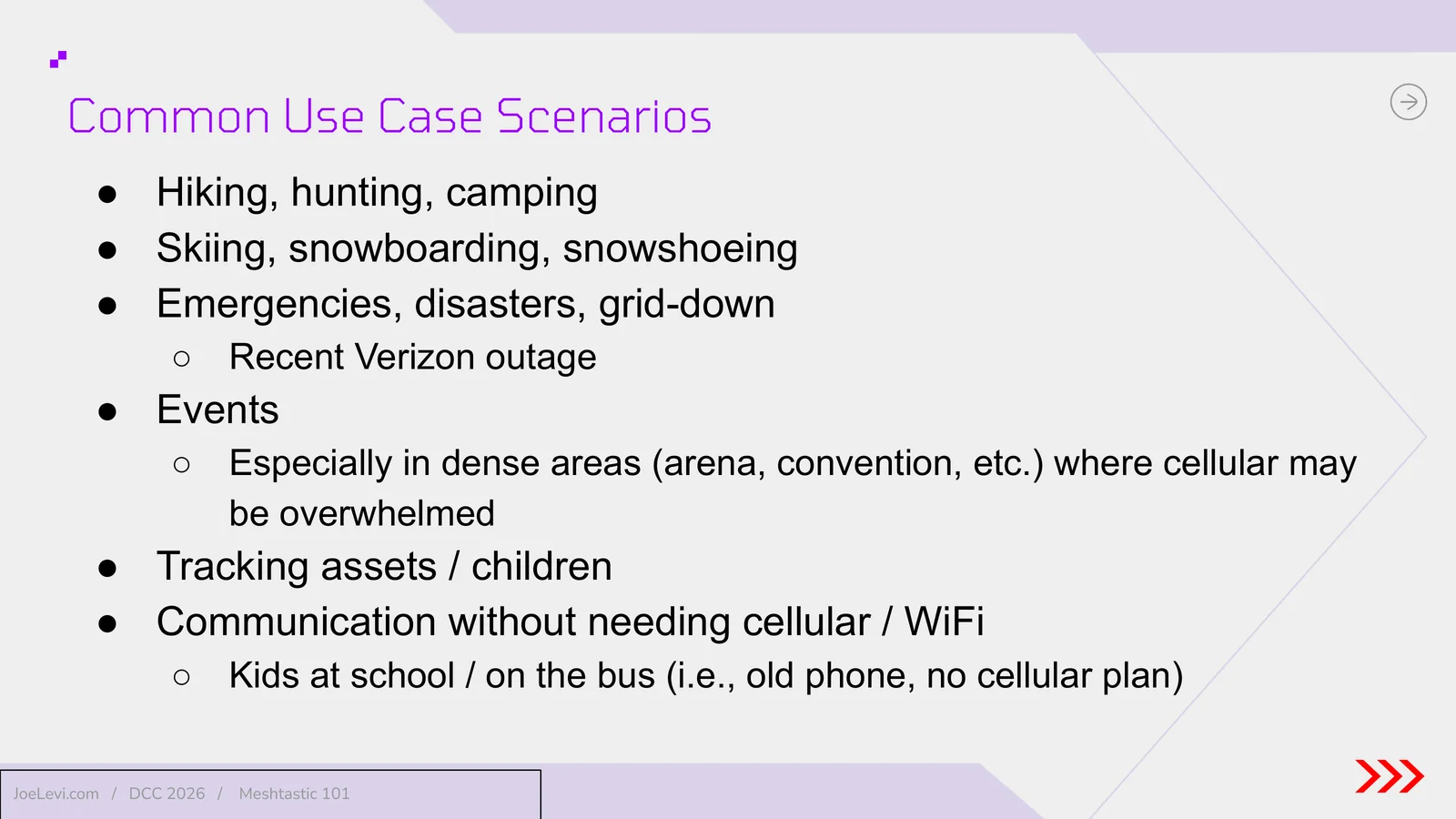
- Slide 12: Common use cases. Hiking, hunting, camping, winter sports, emergencies and grid-down events, crowded venues where cellular is overwhelmed, tracking assets or children, and communication without a cellular plan.
- Slide 13: What is a mesh? Section title.
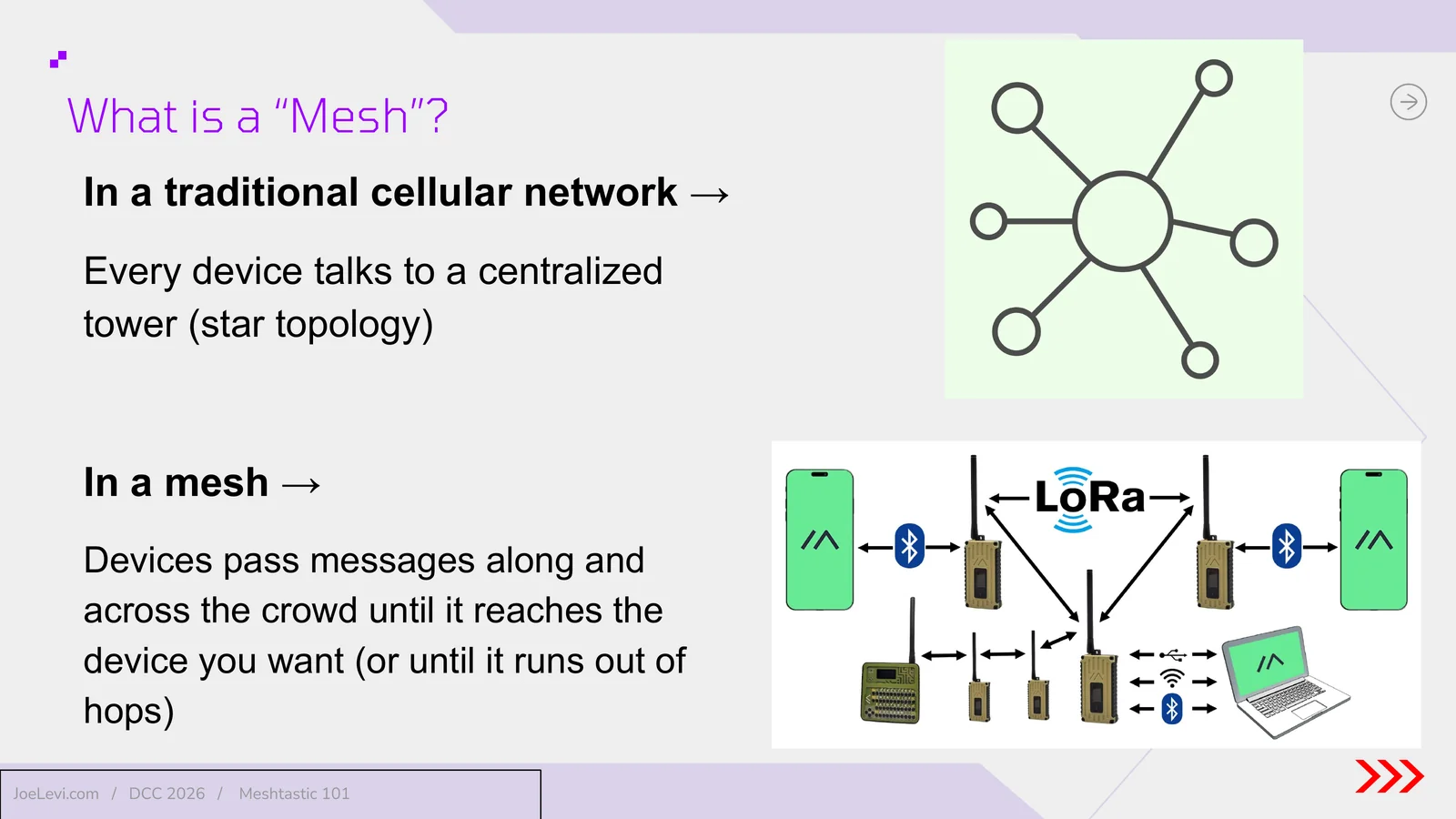
- Slide 14: How a mesh differs from cellular. In a cellular network every device talks to a centralized tower. In a mesh, devices pass messages along until they reach the destination, or run out of hops.
- Slide 15: What is LoRa? Section title.
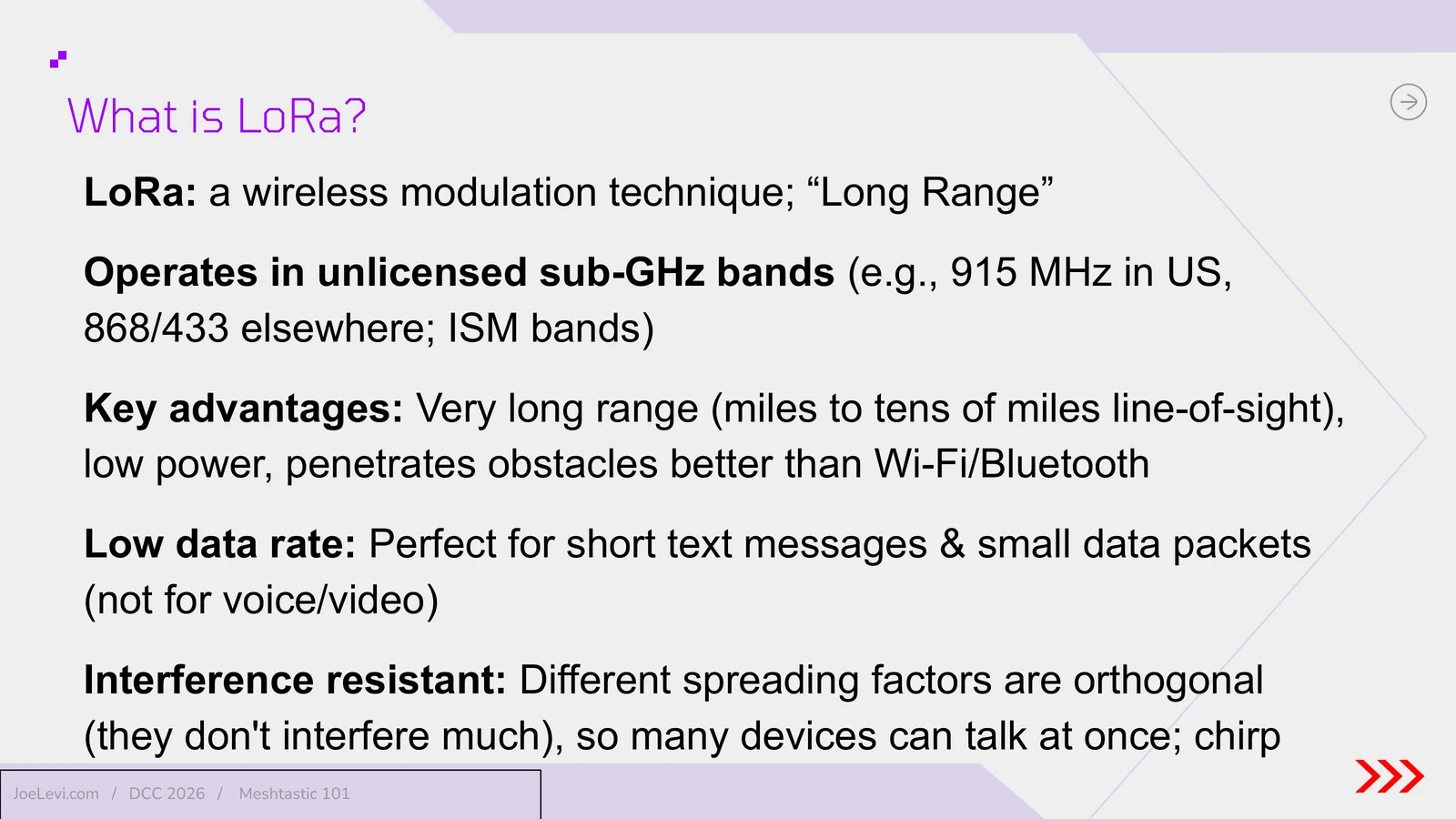
- Slide 16: LoRa in brief. LoRa, or Long Range, is a wireless modulation technique in unlicensed sub-GHz ISM bands. It offers long range, low power, and better obstacle penetration than Wi-Fi or Bluetooth, at a low data rate suited to short messages.
- Slide 17: Hardware (nodes or radios). Section title.
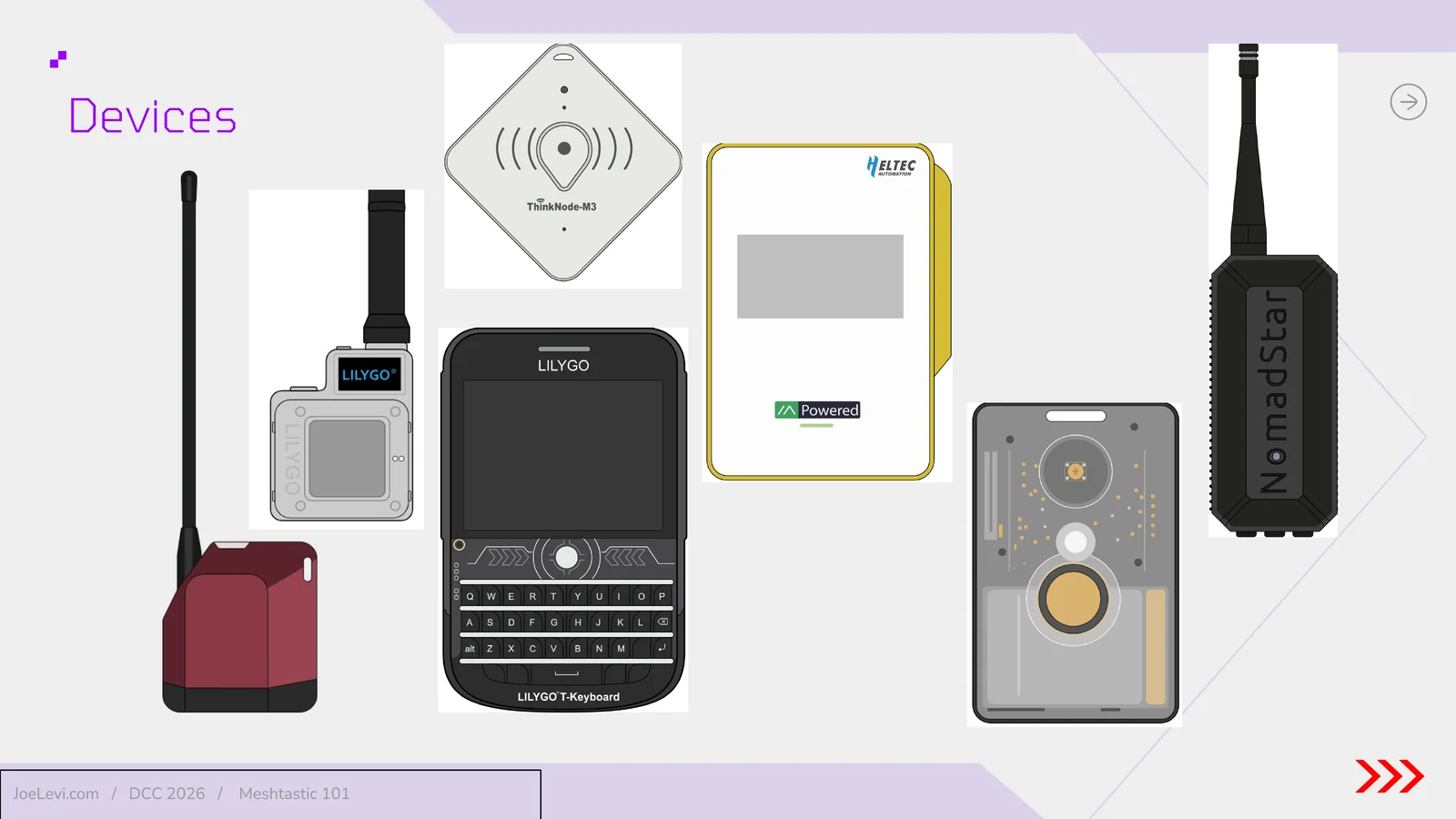
- Slide 18: Example devices. Illustrations of handheld, keyboard, badge, and station-style Meshtastic nodes from makers such as LILYGO, Heltec, ThinkNode, and NomadStar.
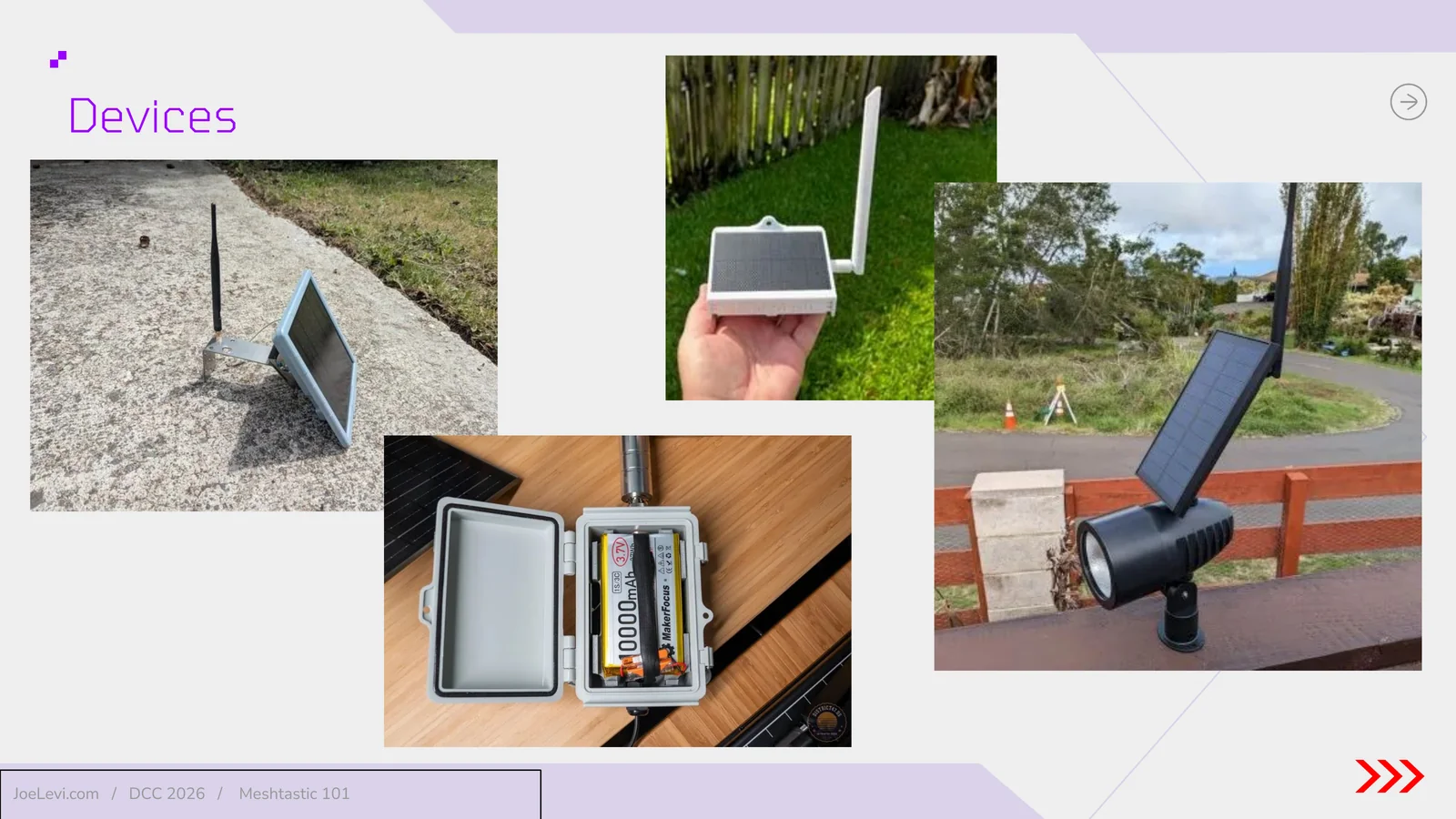
- Slide 19: Solar and outdoor nodes. Photos of solar-powered outdoor Meshtastic nodes and a weatherproof enclosure (opens in a new tab) with a large battery pack.
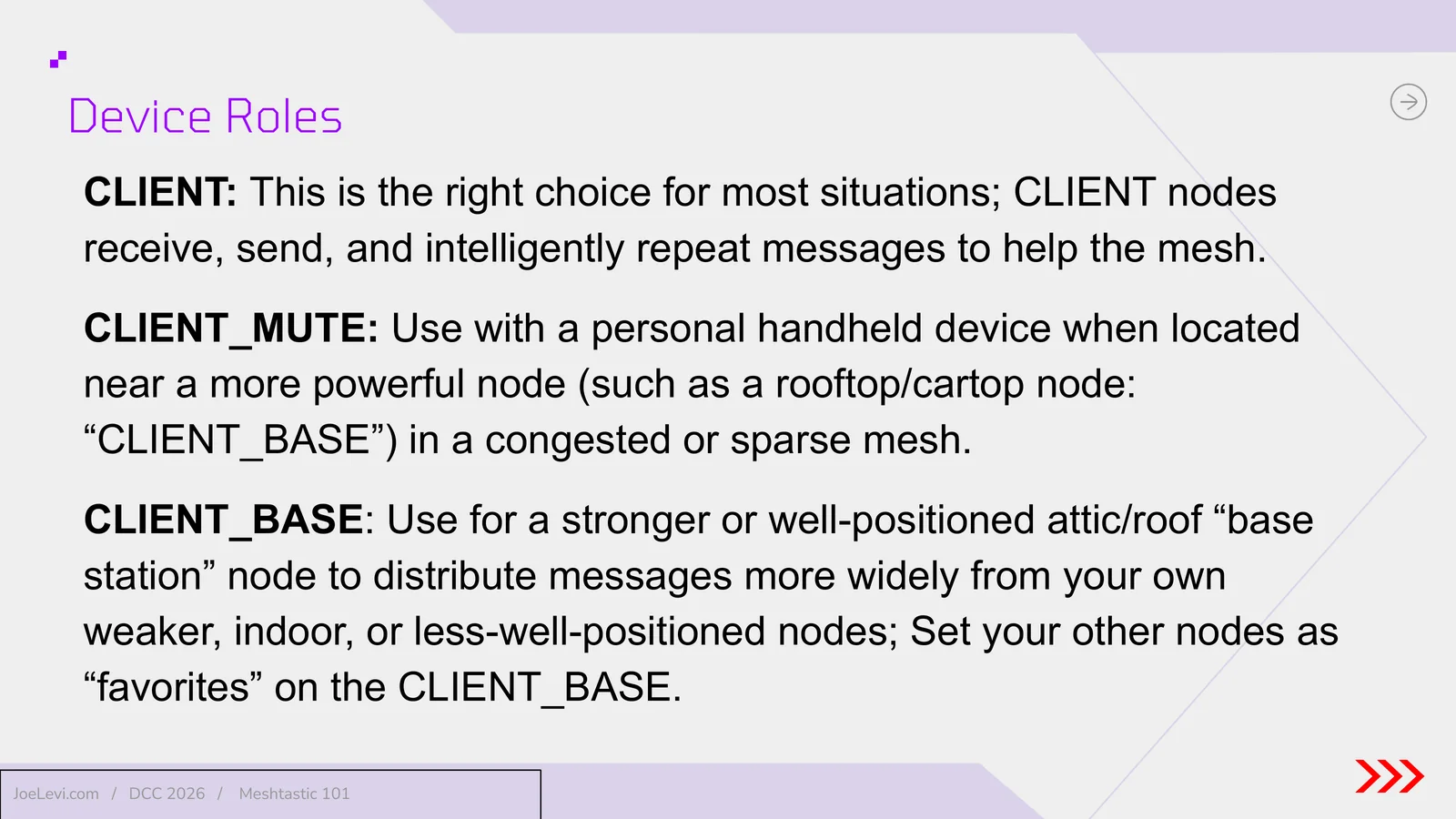
- Slide 20: Device roles: CLIENT, CLIENT_MUTE, and CLIENT_BASE. CLIENT is right for most situations. CLIENT_MUTE is for a handheld near a stronger node. CLIENT_BASE is for a well-positioned home or vehicle base; favorite your other nodes on it.
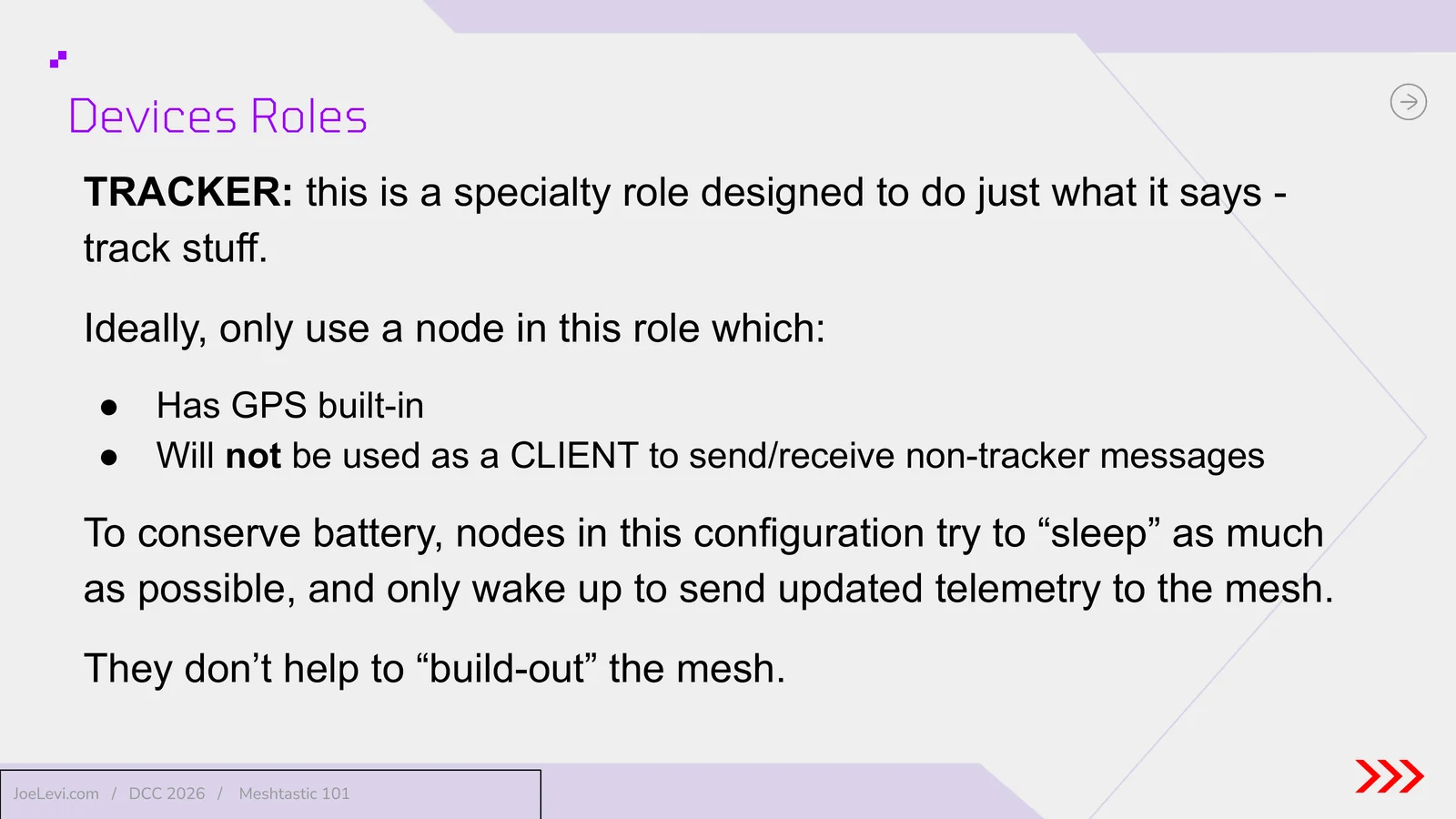
- Slide 21: Device role: TRACKER. A specialty GPS tracking role that sleeps often, sends telemetry, and does not help build out the mesh.
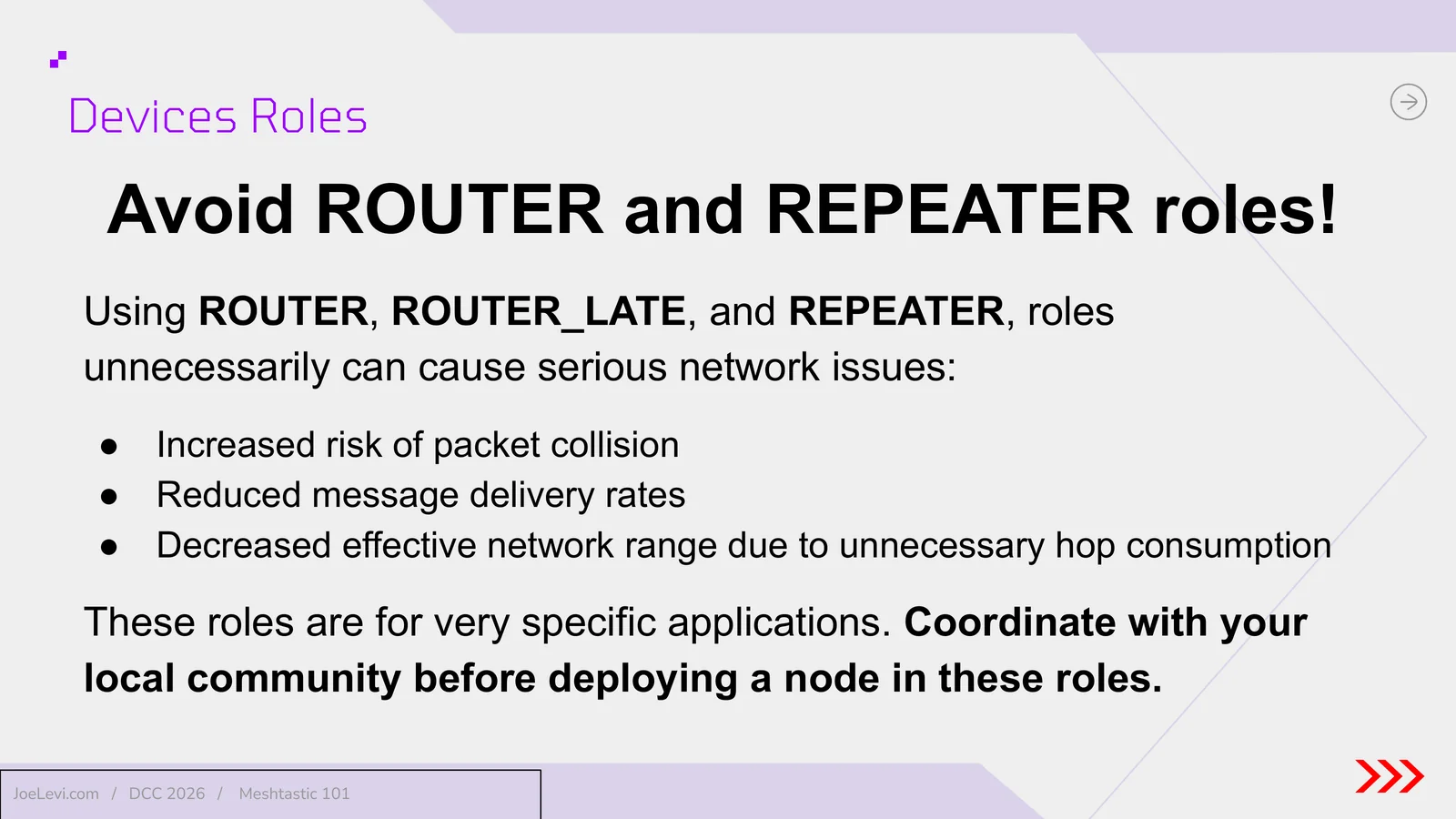
- Slide 22: Avoid ROUTER and REPEATER unless coordinated. Those roles can increase collisions, reduce delivery, and waste hops. Use them only for specific applications, and coordinate with the local community.
- Slide 23: Software and firmware. Section title.
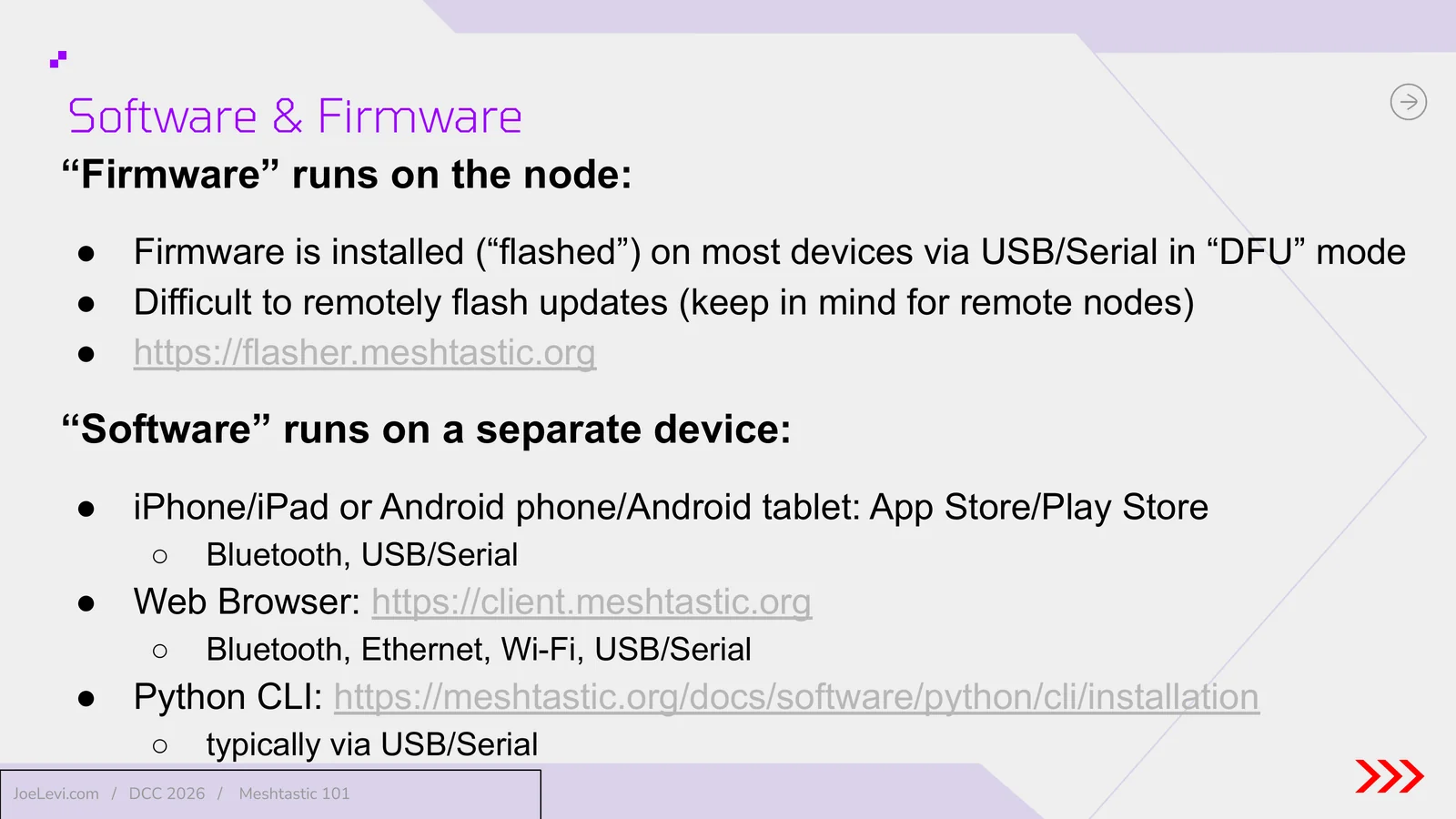
- Slide 24: Where firmware and software run. Firmware is flashed to the node, often over USB in DFU mode, at flasher.meshtastic.org. Apps run on iPhone (opens in a new tab), iPad, or Android, plus a web client and a Python CLI.
- Slide 25: The app does not need internet. After install, the phone or tablet is the screen, keyboard, notifications, and GPS. The current stable release is the latest beta.
- Slide 26: Configuration. Section title.
- Slide 27: First-time setup. Many nodes ship with current firmware and the CLIENT role. Select the correct region. The most common radio presets are LongFast and MediumFast.
- Slide 28: LongFast. The default and most common preset. It has the longest distance in an uncongested area and is less dependent on infrastructure.
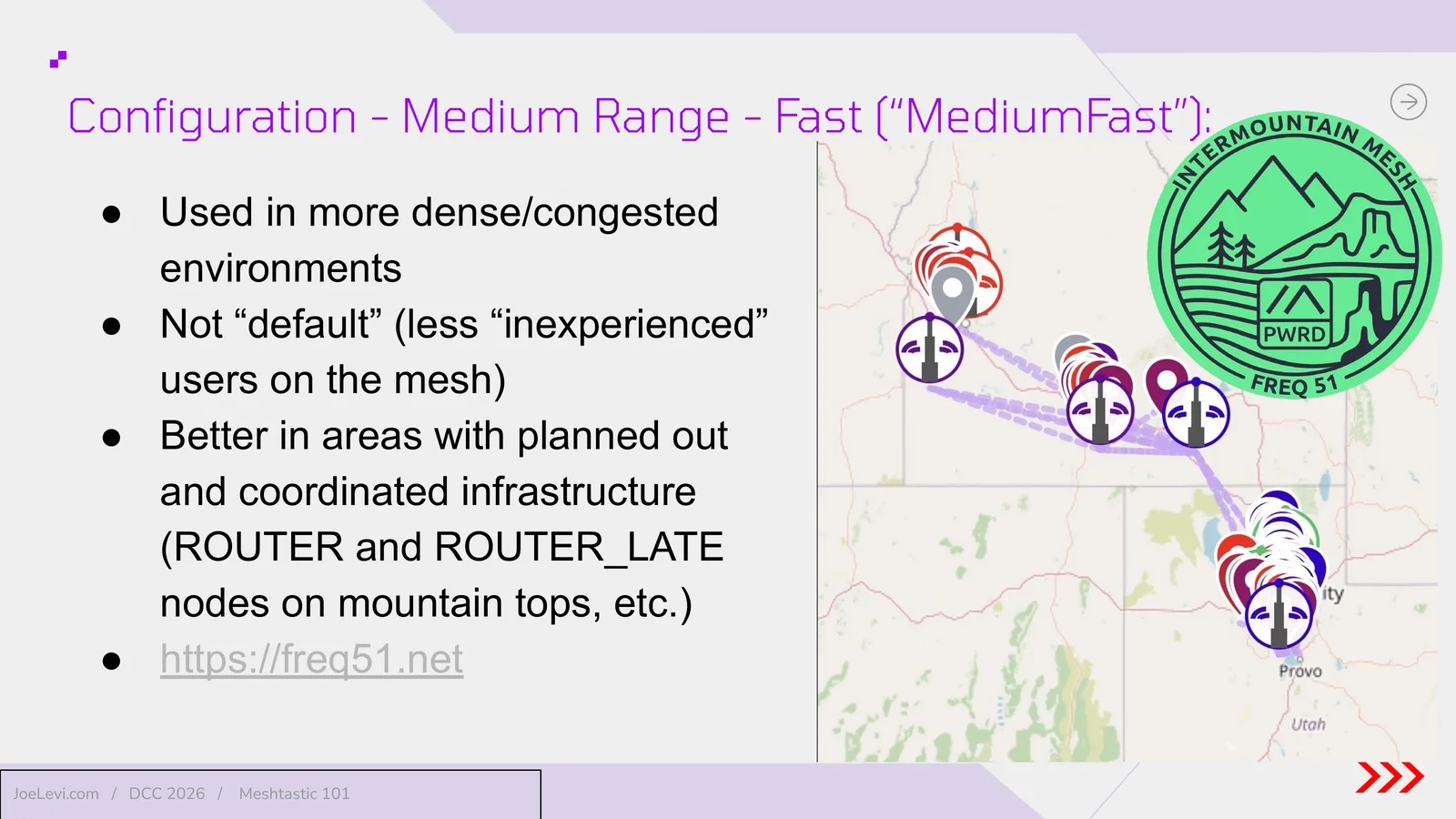
- Slide 29: MediumFast. Better in dense or congested areas, especially with planned infrastructure such as mountain-top ROUTER nodes. A listed resource is freq51.net.
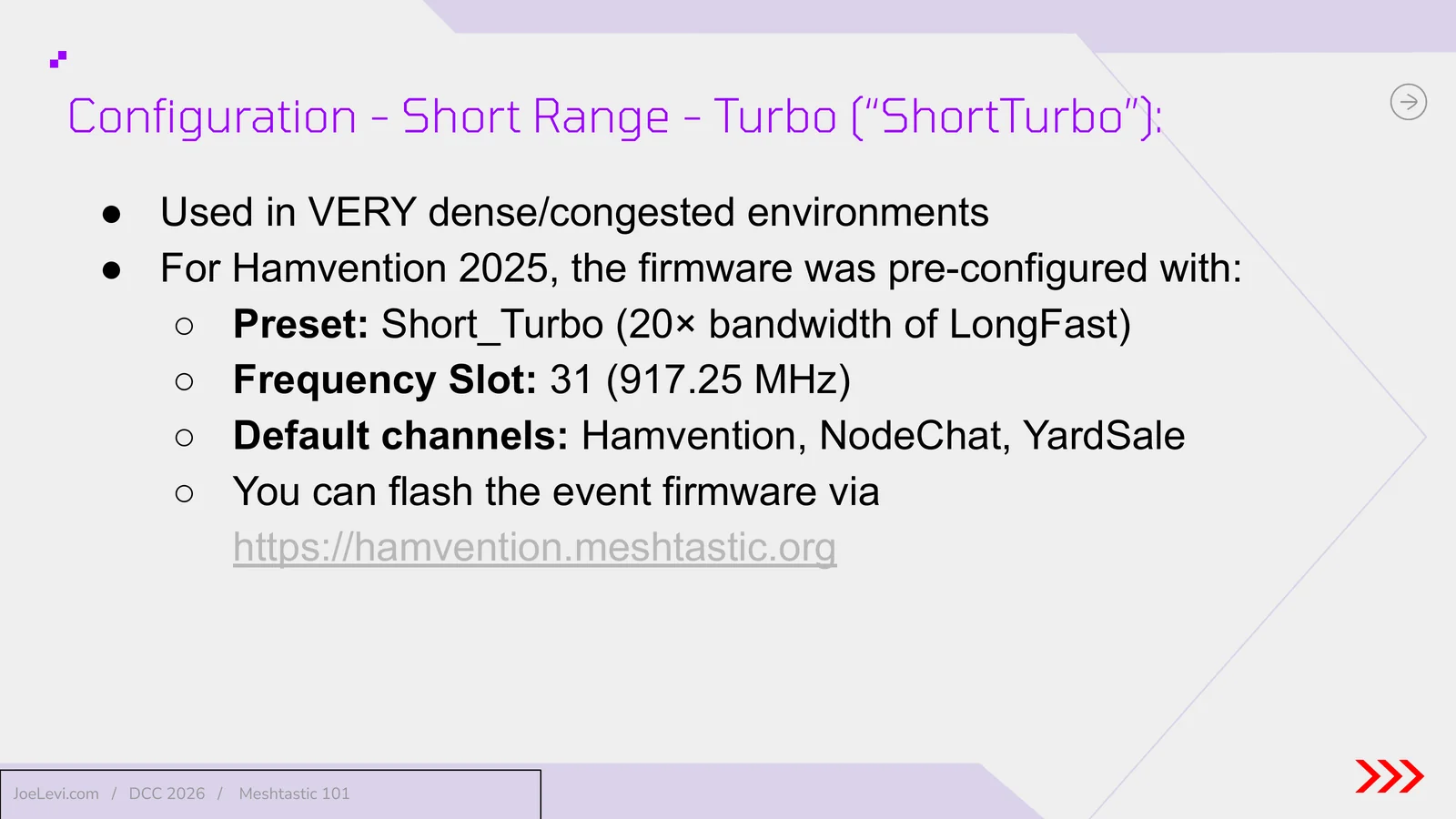
- Slide 30: ShortTurbo. Used in very dense environments. Hamvention 2025 pre-configured Short_Turbo, frequency slot 31 at 917.25 MHz, and event channels, flashable at hamvention.meshtastic.org.
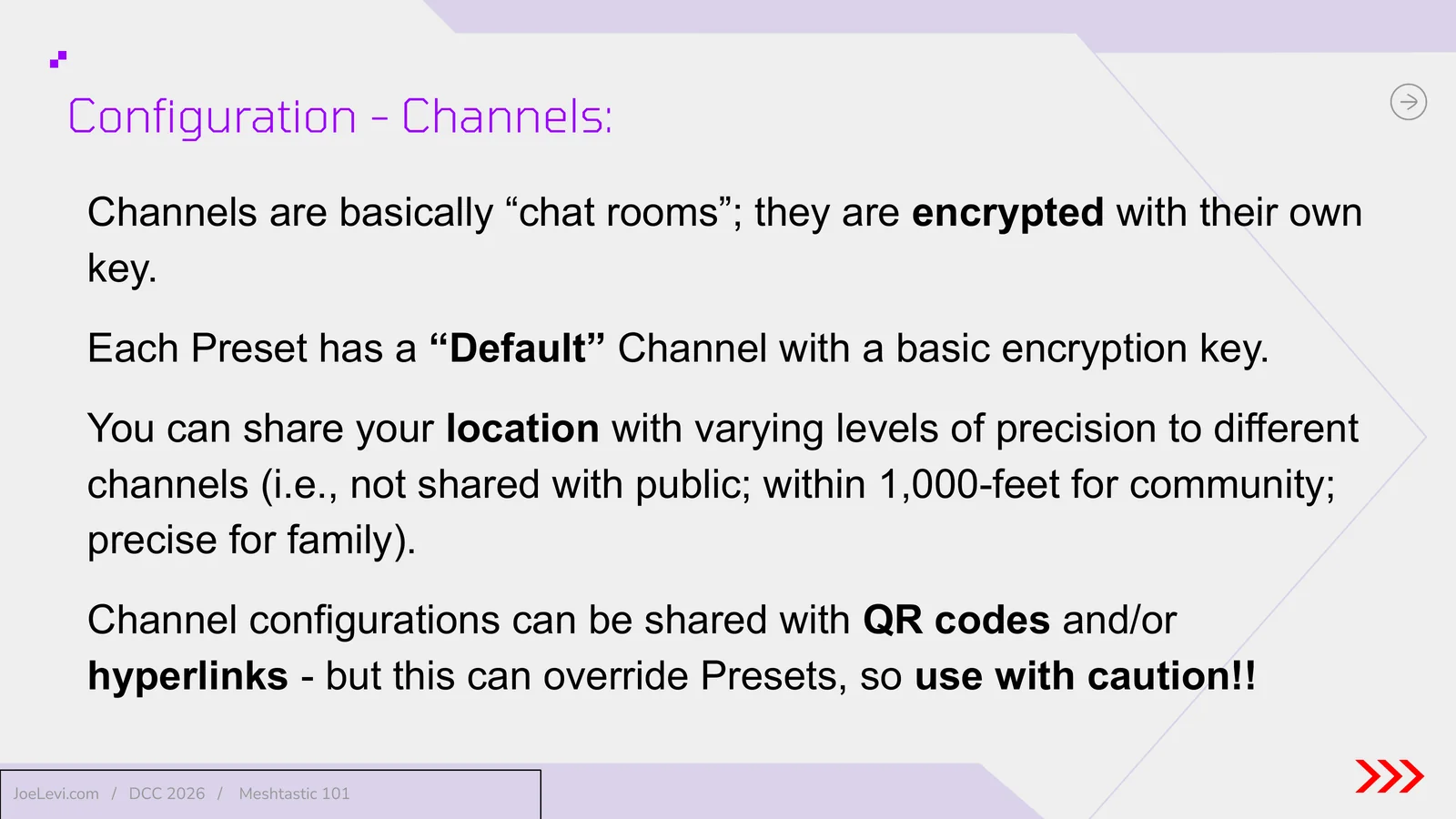
- Slide 31: Channels. Encrypted chat rooms with their own keys. Location can be shared at different precision on different channels. QR codes and links can share a channel, but they can also override presets.
- Slide 32: Getting started. Section title.
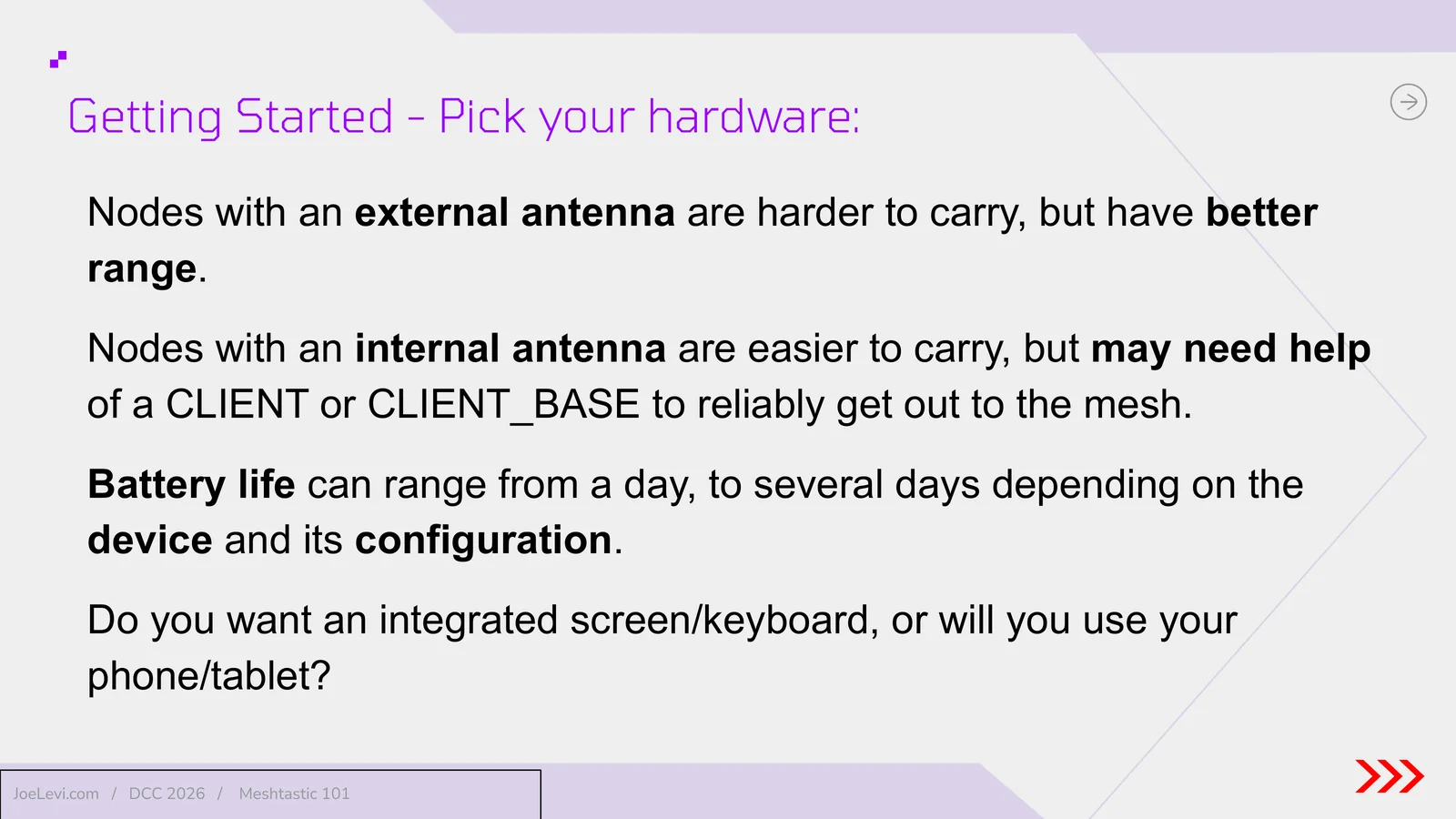
- Slide 33: Pick your hardware. External antennas improve range but are harder to carry. Internal antennas are easier to carry but may need a base node. Battery life varies from about a day to several days.
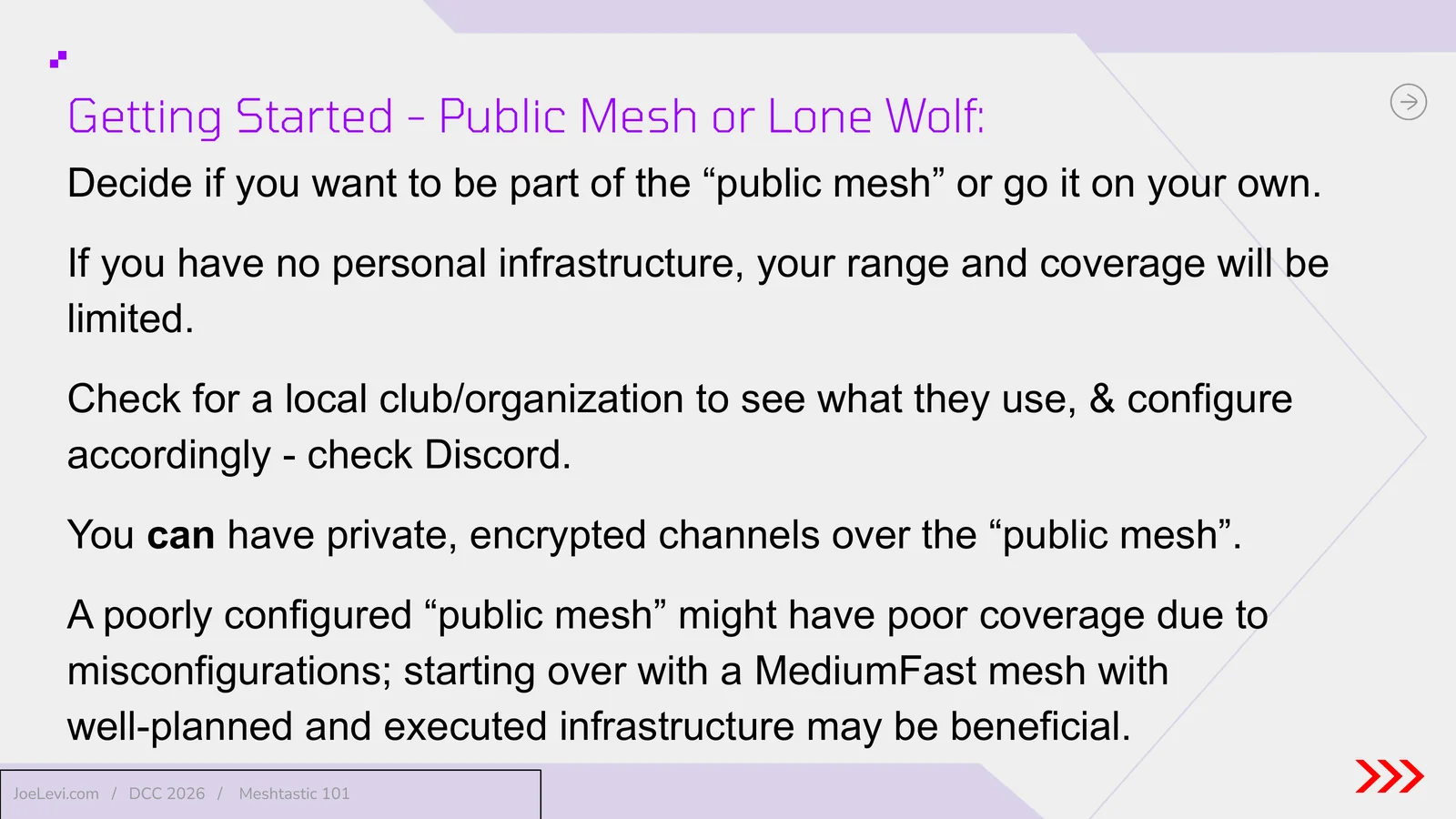
- Slide 34: Public mesh or lone wolf. Join the public mesh or operate on your own. Check local clubs or Discord. Private encrypted channels can still ride the public mesh. A poorly configured public mesh may push a community toward a planned MediumFast deployment.
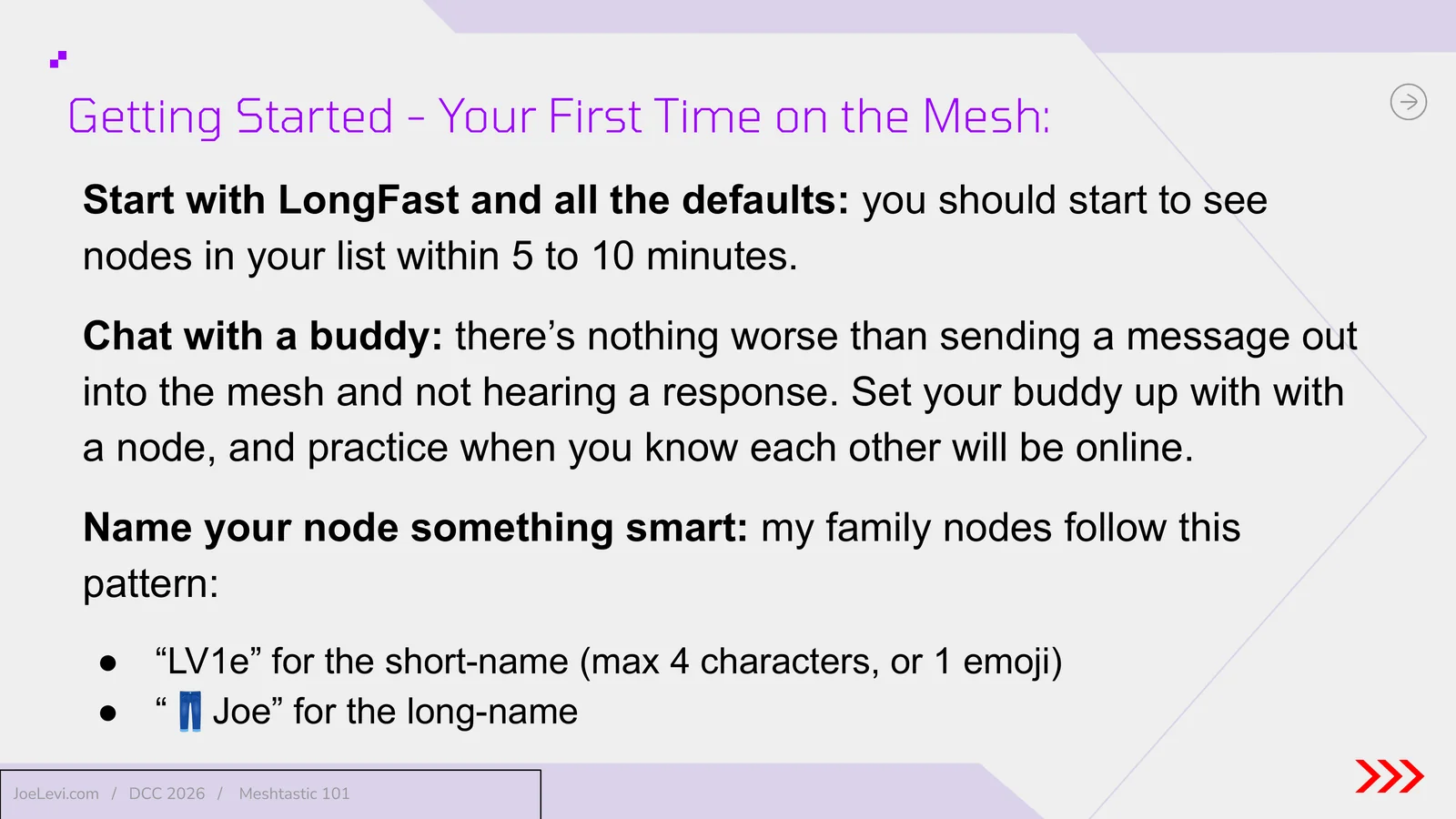
- Slide 35: Your first time on the mesh. Start with LongFast and the defaults. You should see nodes within 5 to 10 minutes. Practice with a buddy, and give your node a clear short name (up to 4 characters or 1 emoji) and long name.
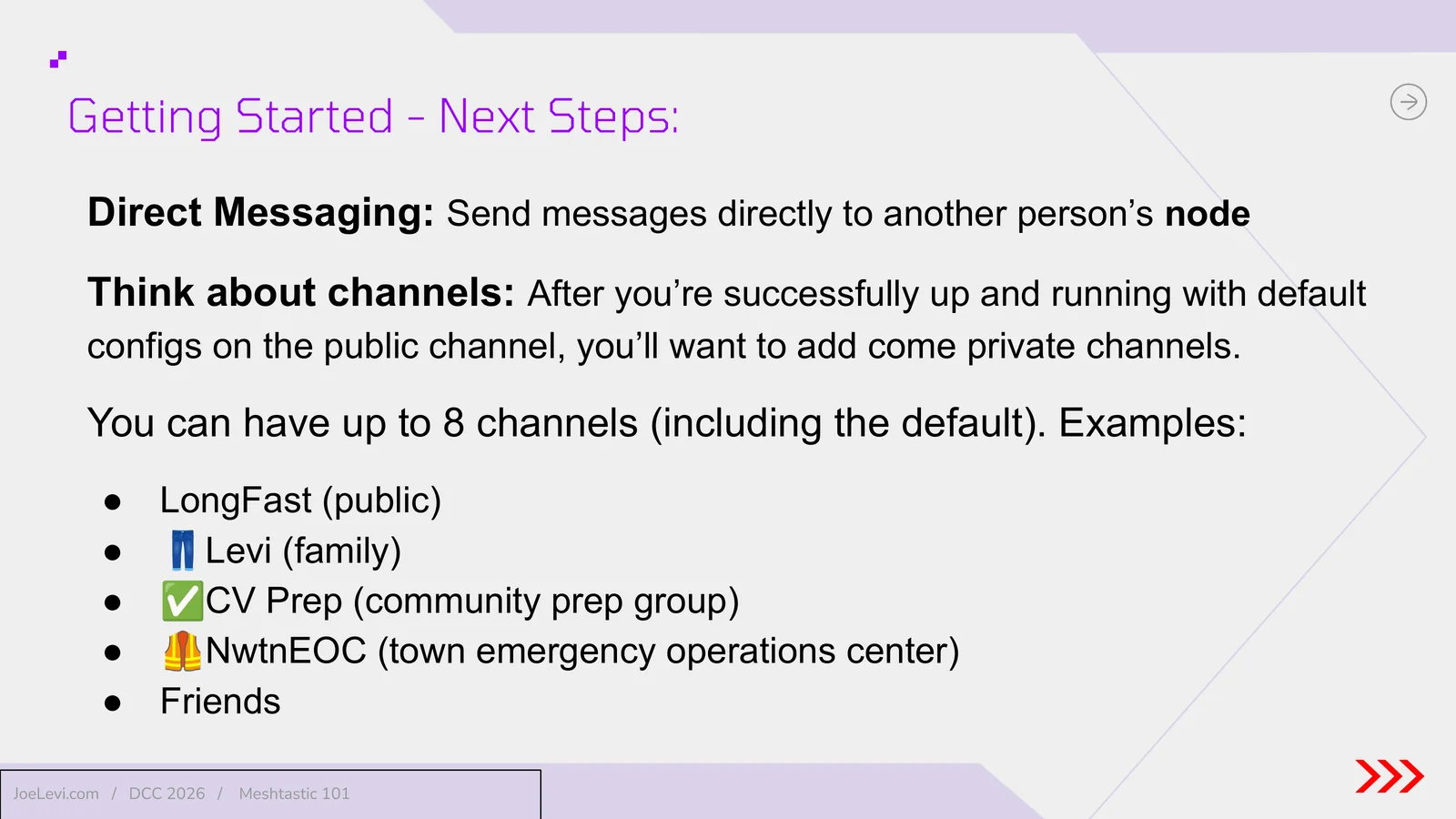
- Slide 36: Next steps. Try direct messaging, then add private channels. You can have up to 8 channels, including the default, for family, community, emergency operations, and friends.
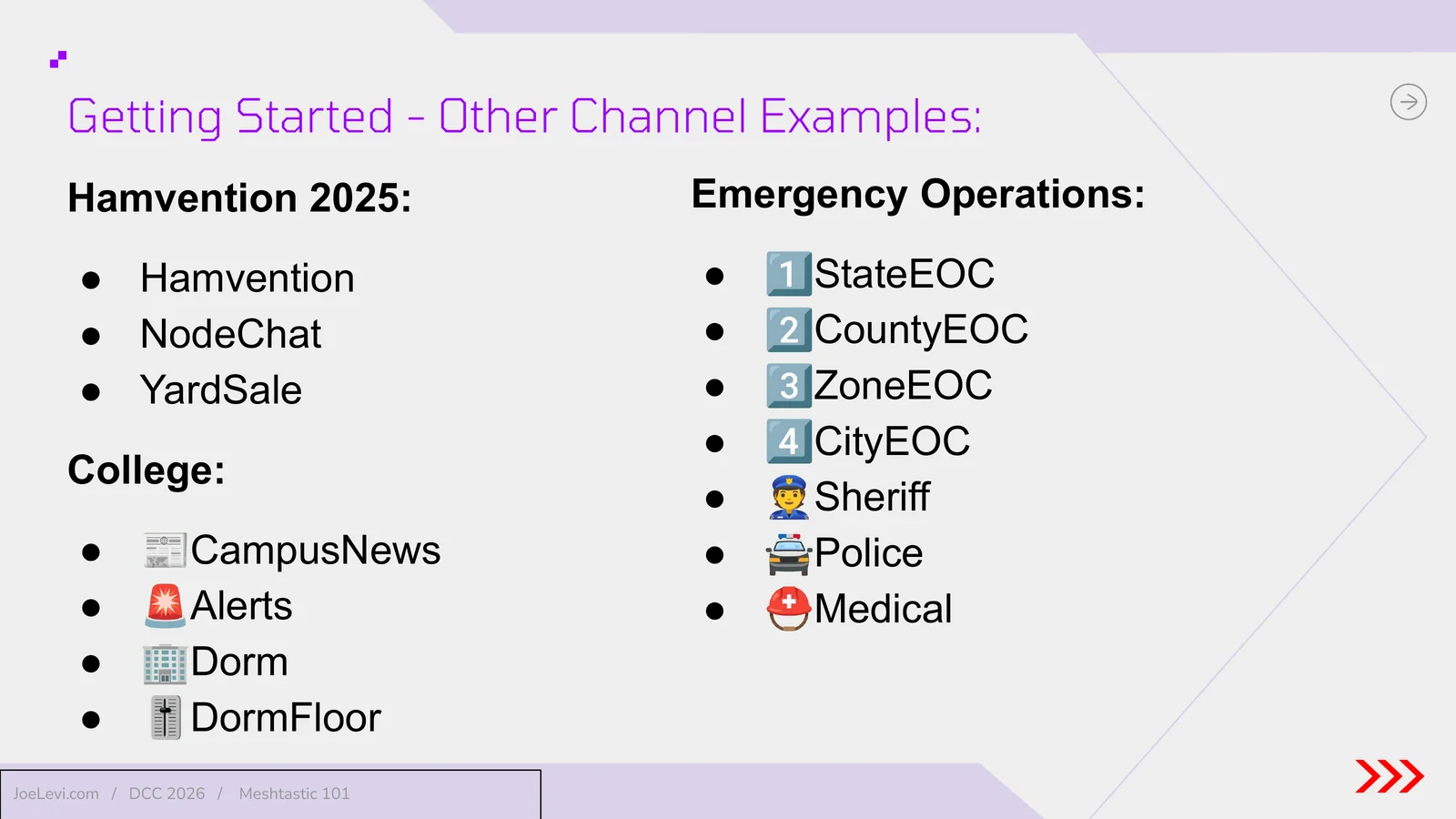
- Slide 37: Other channel examples. Event, campus, and emergency operations channel naming examples, including Hamvention, campus alerts, and EOC, sheriff, police, and medical channels.
- Slide 38: Private channels. Section title.
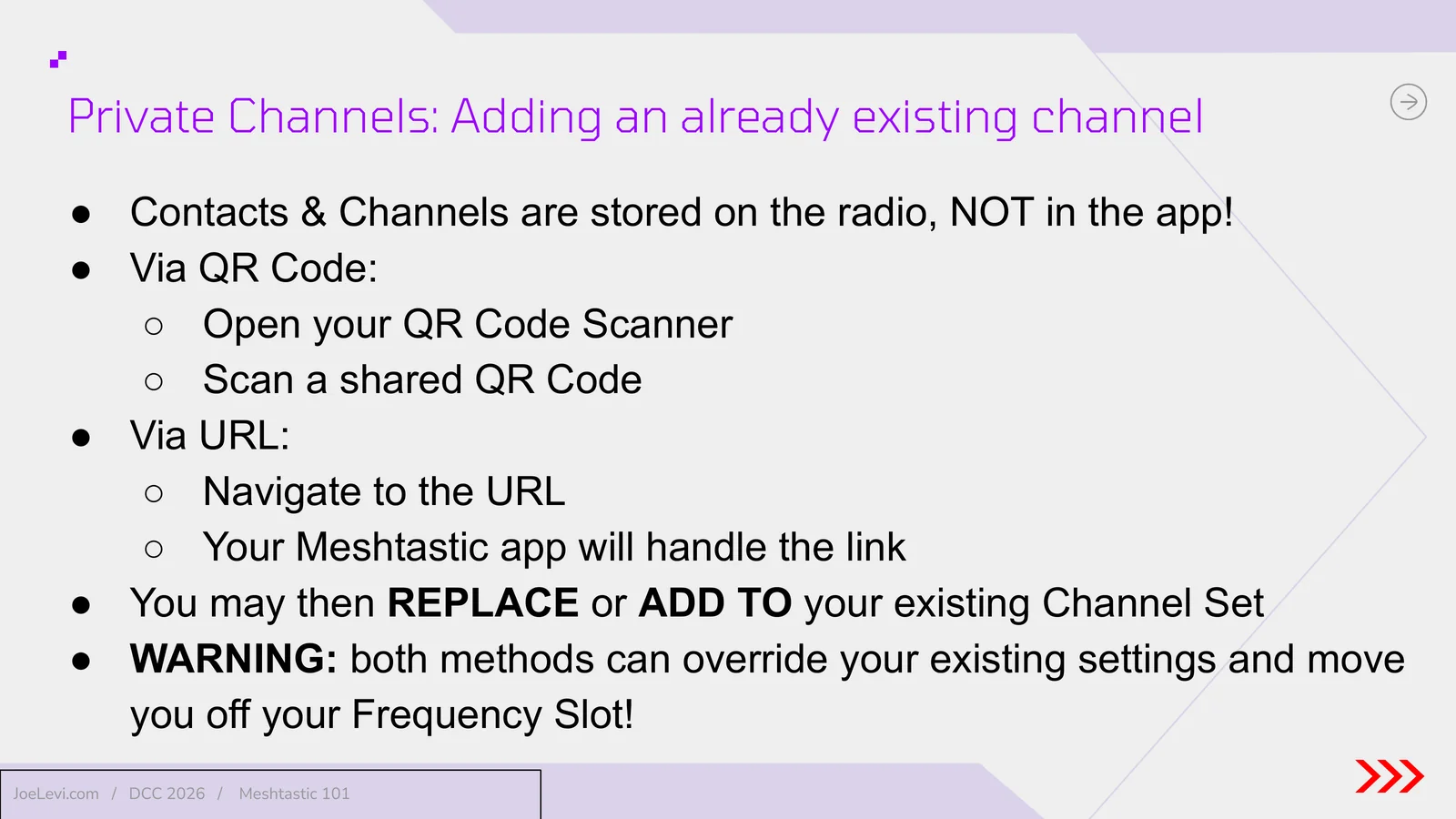
- Slide 39: Adding an existing channel. Contacts and channels are stored on the radio, not in the app. Add a channel from a QR code or URL, then choose to replace or add to your set. This can override settings and your frequency slot.
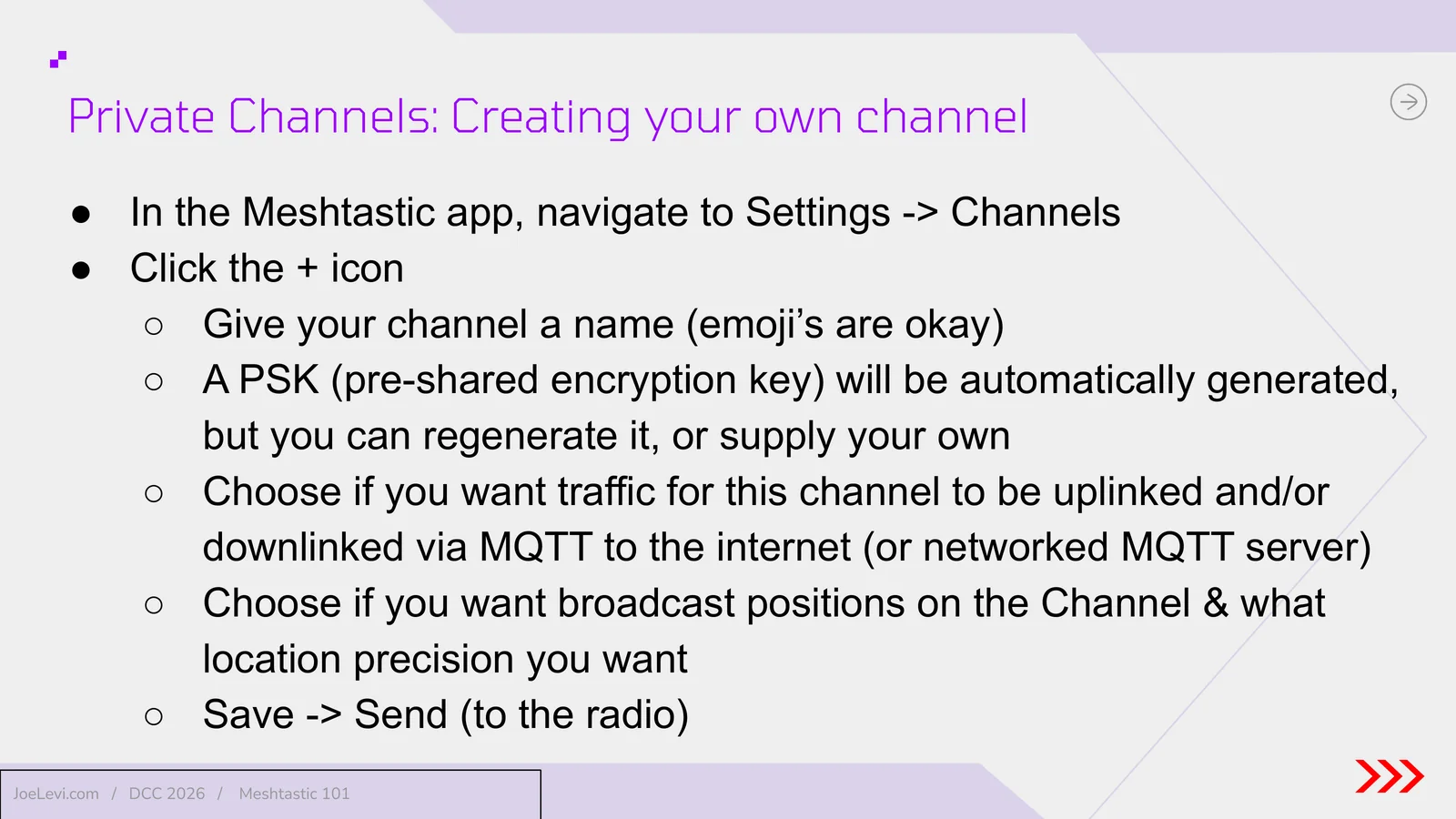
- Slide 40: Creating your own channel. In Settings, then Channels, add a named channel, accept or set a pre-shared key, choose MQTT uplink or downlink and location precision, then save and send the settings to the radio.
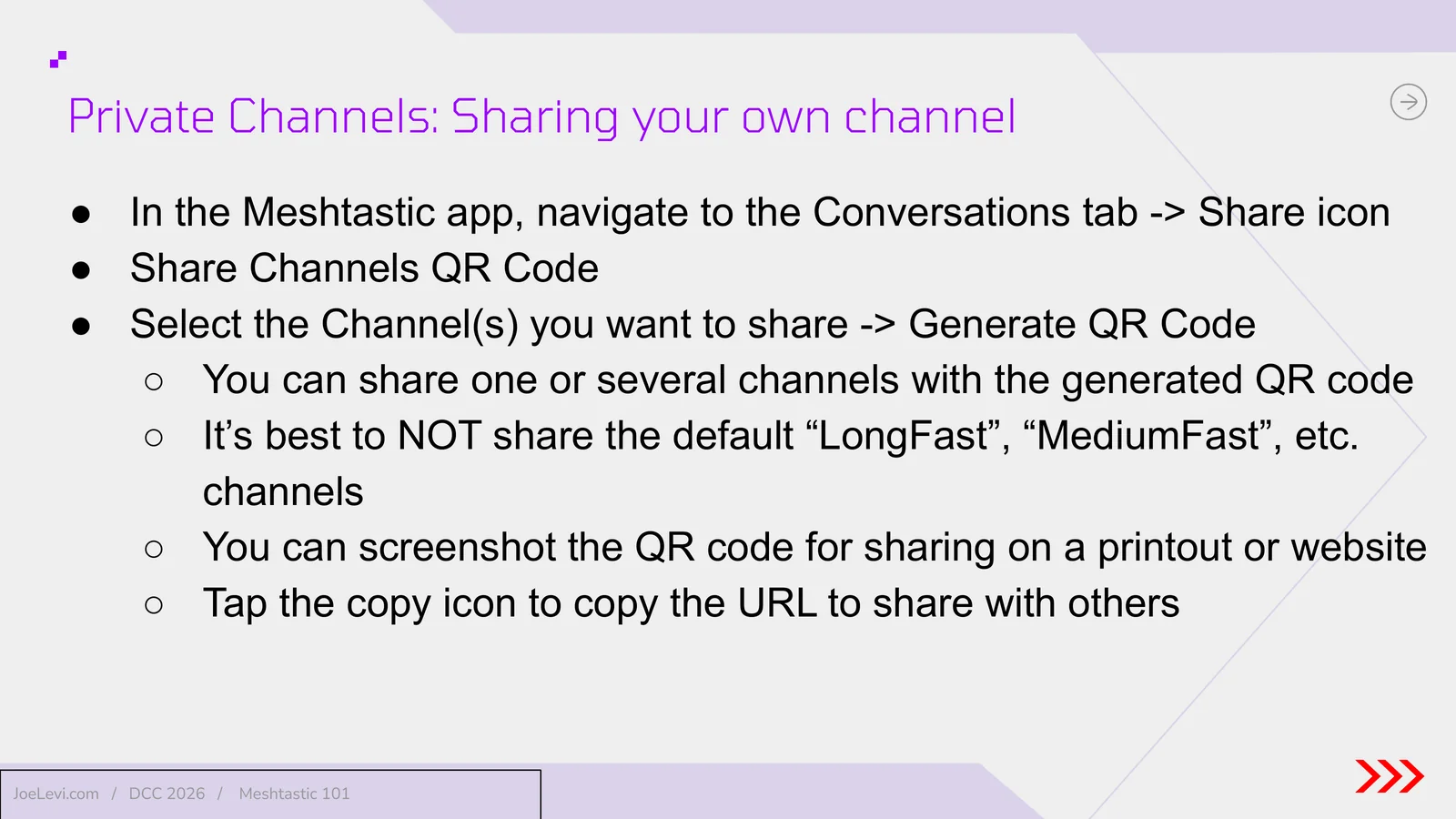
- Slide 41: Sharing your channel. From the Conversations tab, generate a QR code or copy a URL for one or more channels. It is best not to share the default LongFast or MediumFast channels.
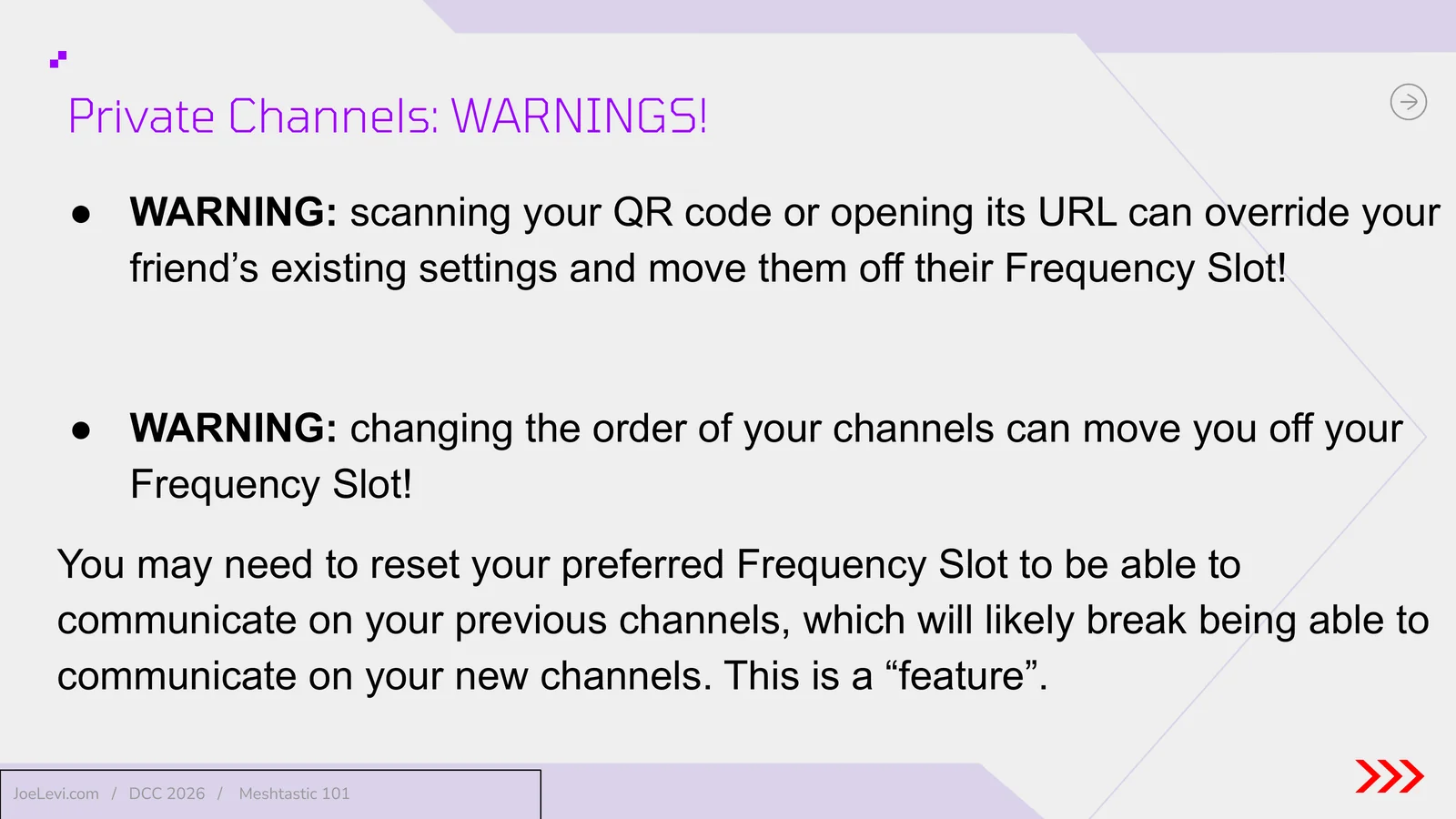
- Slide 42: Private channel warnings. Scanning a channel QR code or opening its URL, or changing channel order, can move you or a friend off the intended frequency slot and break existing channels.
- Slide 43: Pitfalls, tips, and troubleshooting. Section title.
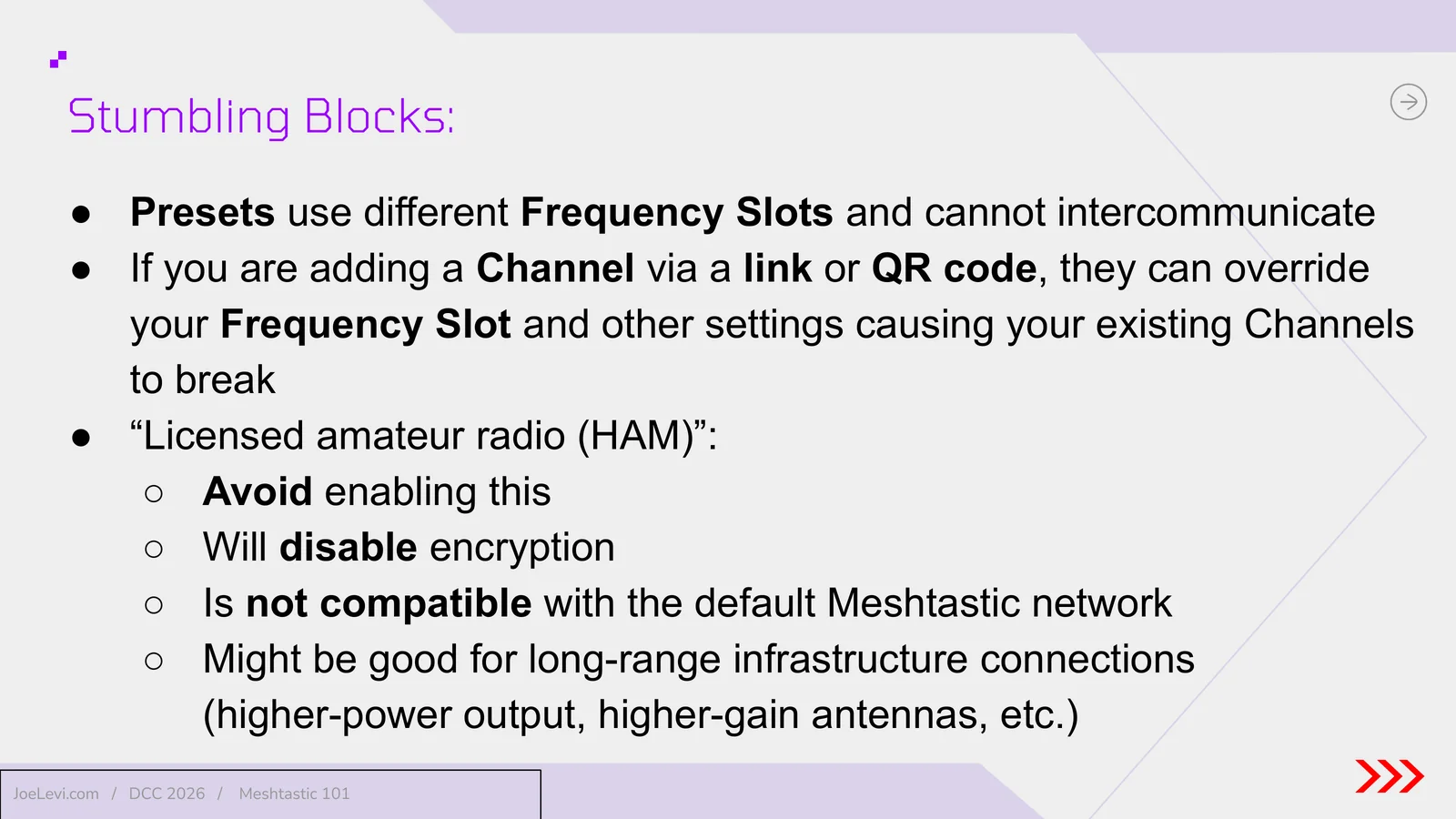
- Slide 44: Stumbling blocks: presets, QR codes, and the HAM setting. Different presets use different frequency slots and cannot intercommunicate. Channel links can override your slot. The licensed amateur radio setting disables encryption and is incompatible with the default Meshtastic network.
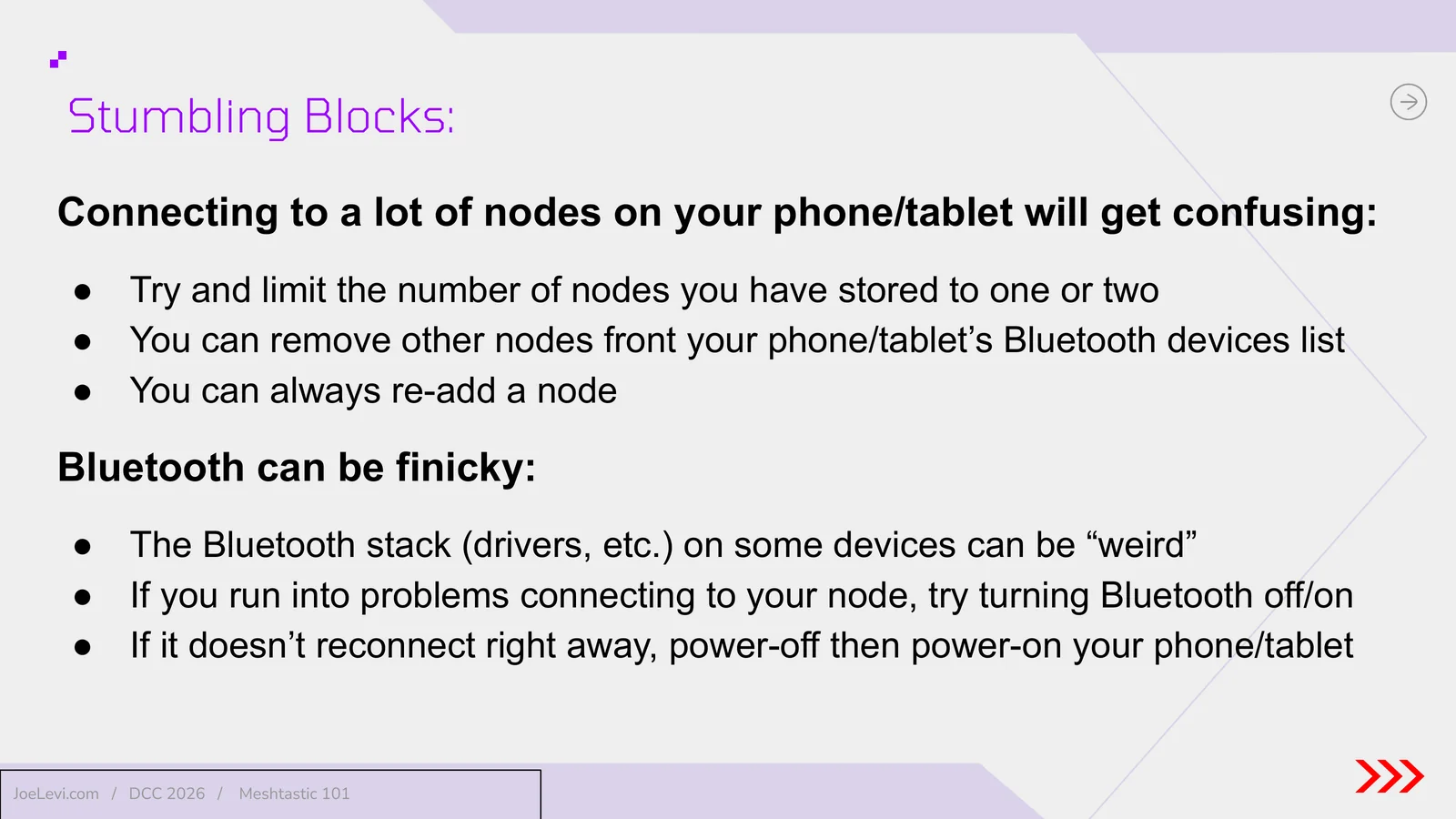
- Slide 45: Stumbling blocks: too many Bluetooth nodes. Keep one or two nodes stored on your phone or tablet. Bluetooth can be unreliable; toggle it, or power the device off and on, if a node will not reconnect.
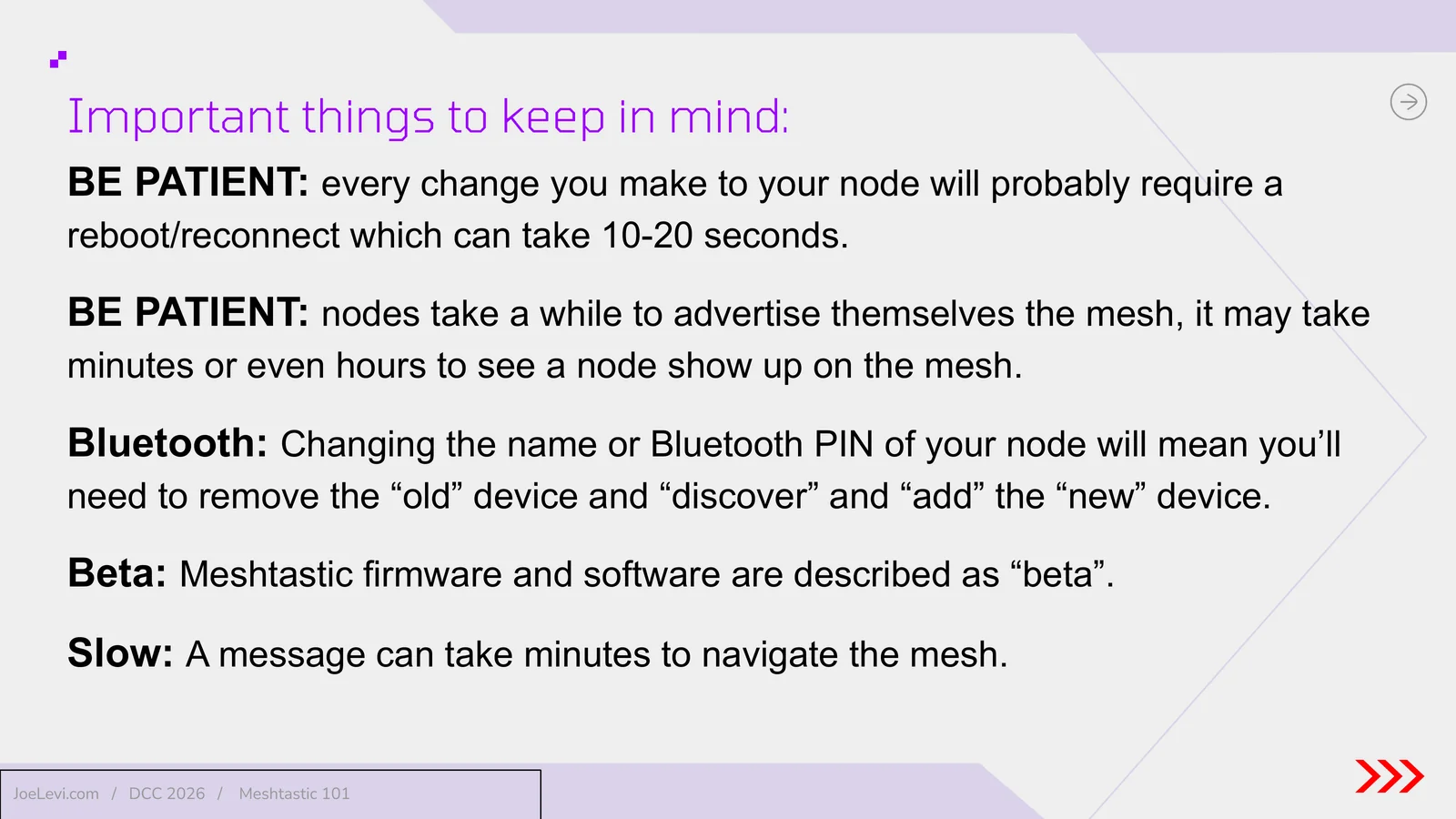
- Slide 46: Be patient. Changes often need a 10 to 20 second reboot. Nodes may take minutes or hours to appear. Renaming a node or changing its Bluetooth PIN requires pairing again. Software is described as beta, and a message can take minutes to cross the mesh.
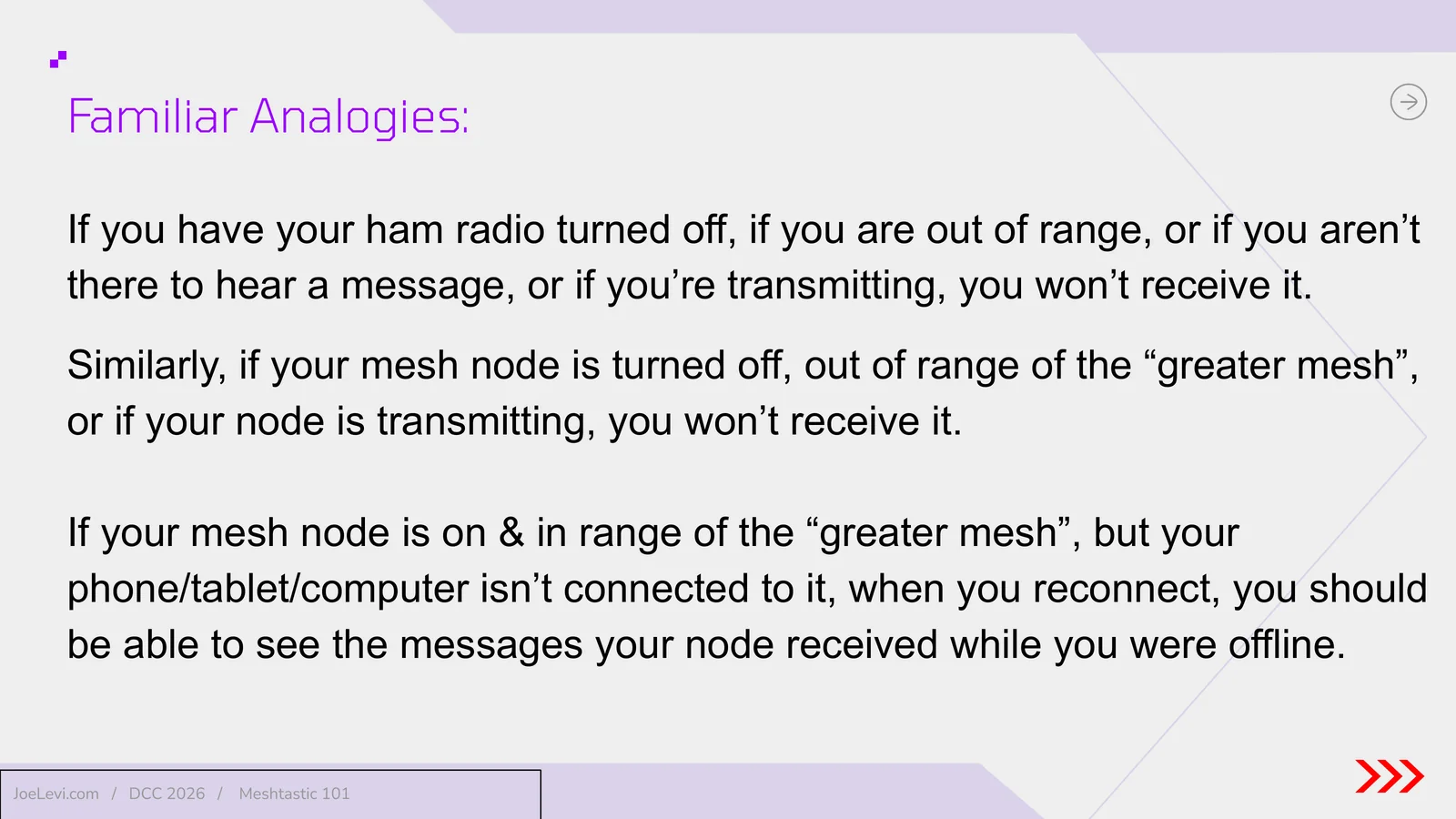
- Slide 47: Familiar analogies. If a ham radio is off, out of range, unattended, or transmitting, you will not receive a message. A mesh node works the same way. If the node stays on and in range while your phone is disconnected, you should see stored messages when you reconnect.
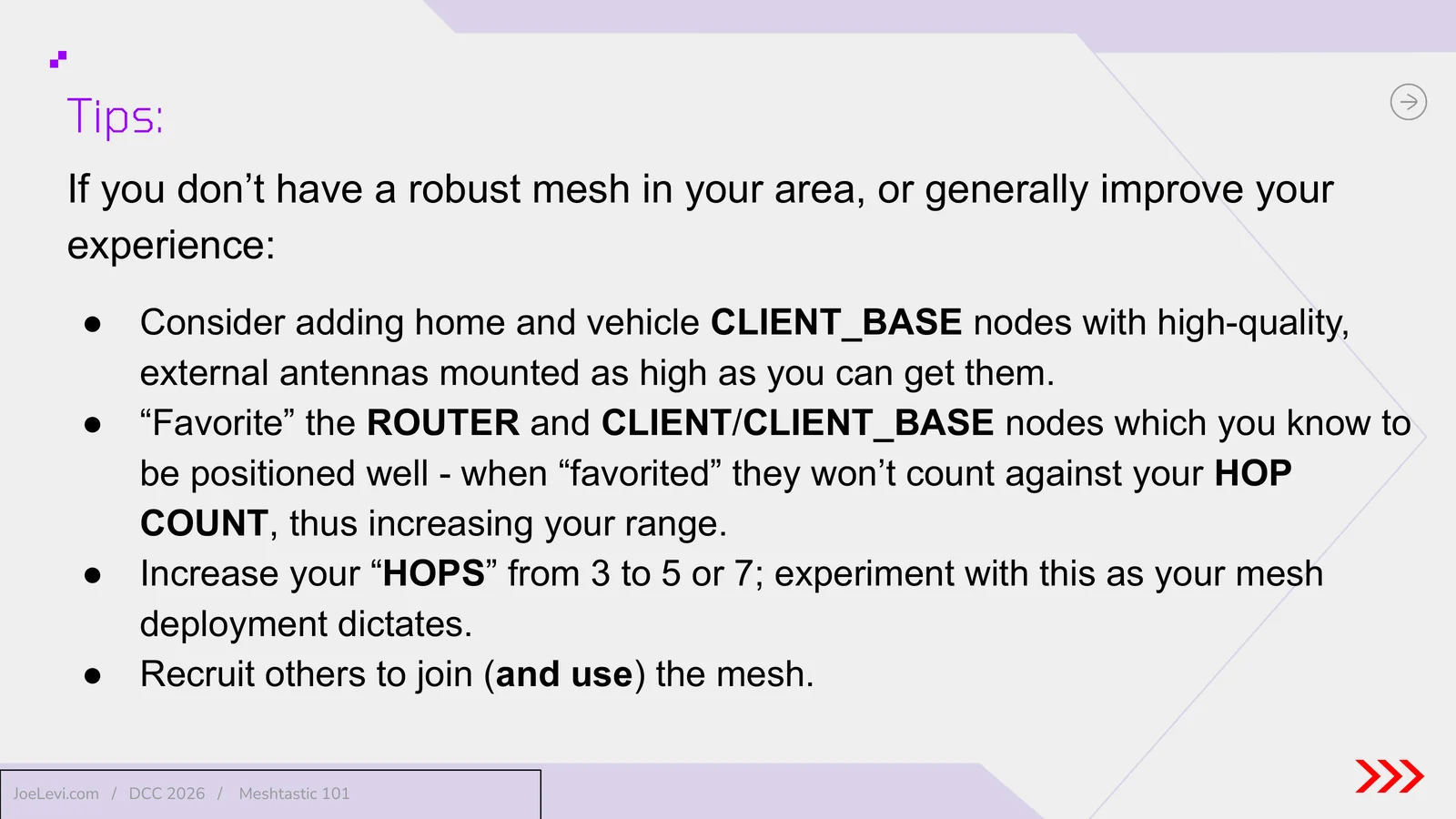
- Slide 48: Tips to improve coverage. Add well-placed CLIENT_BASE nodes with high external antennas, favorite well-positioned nodes so they do not count against hop count, try 5 or 7 hops instead of 3, and recruit more people to use the mesh.
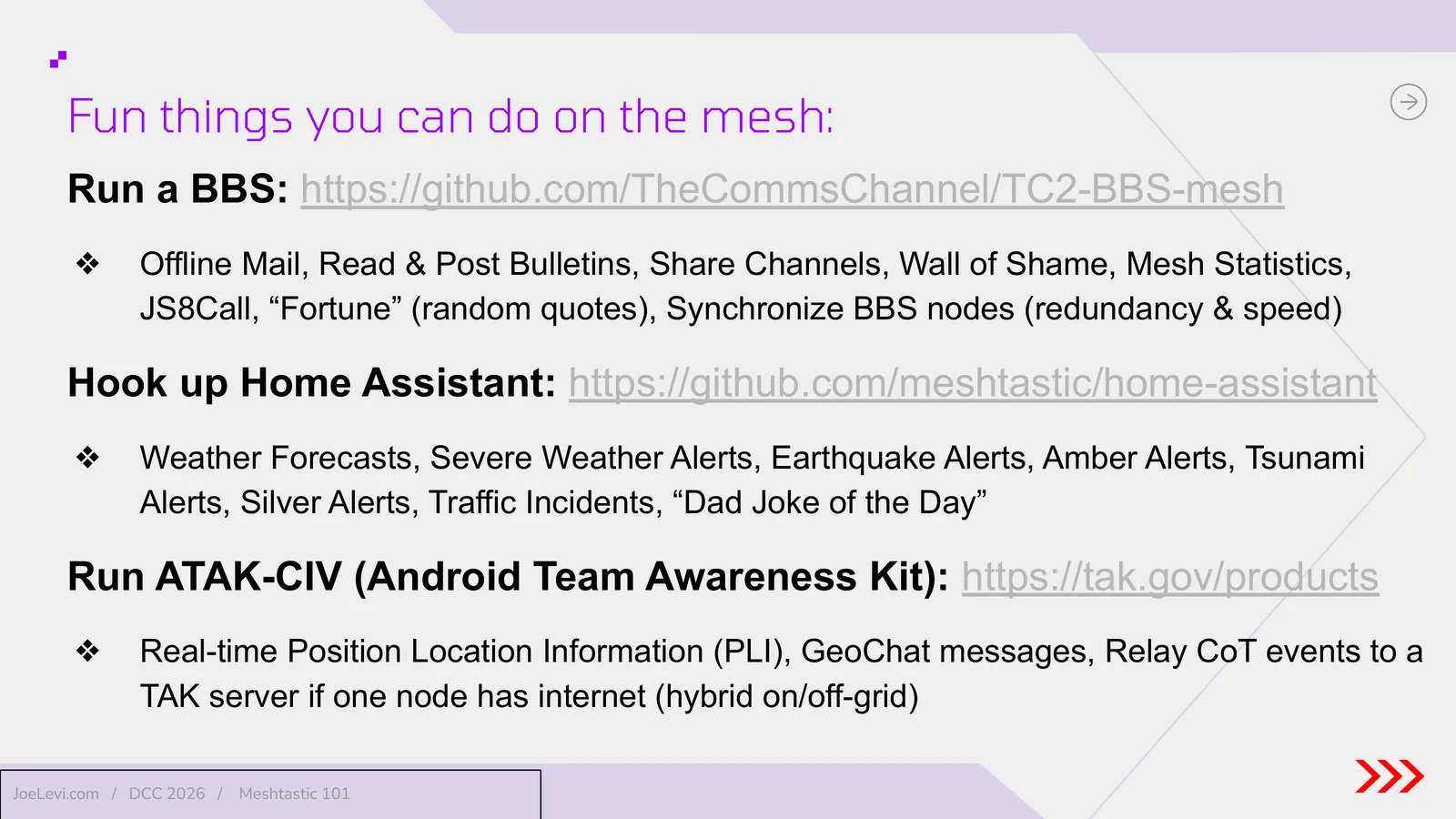
- Slide 49: Fun things on the mesh. Run a mesh BBS, connect Home Assistant for weather and alerts, or use ATAK-CIV for position sharing and GeoChat, including a hybrid setup when one node has internet.
- Slide 50: Questions? Question and answer close.
- Slide 51: Thank you. Joe Levi closes with, I'll see you on the mesh.